 Asal Ku Training
Start here › Lesson 4
Looking at a tree
Open a tree, understand how people and lines are drawn, move around, and see the tree from anyone's point of view.
In this lesson you will learn
- How to open and close a tree
- How to read people, couples, children and the different kinds of line
- How to zoom, move around, and find a person
- How to see more about someone, and view the tree from their point of view
Opening a tree
On the Trees screen, tap a card. The tree opens full screen. To go back to your list, tap the × at the top right or the Done button at the bottom.
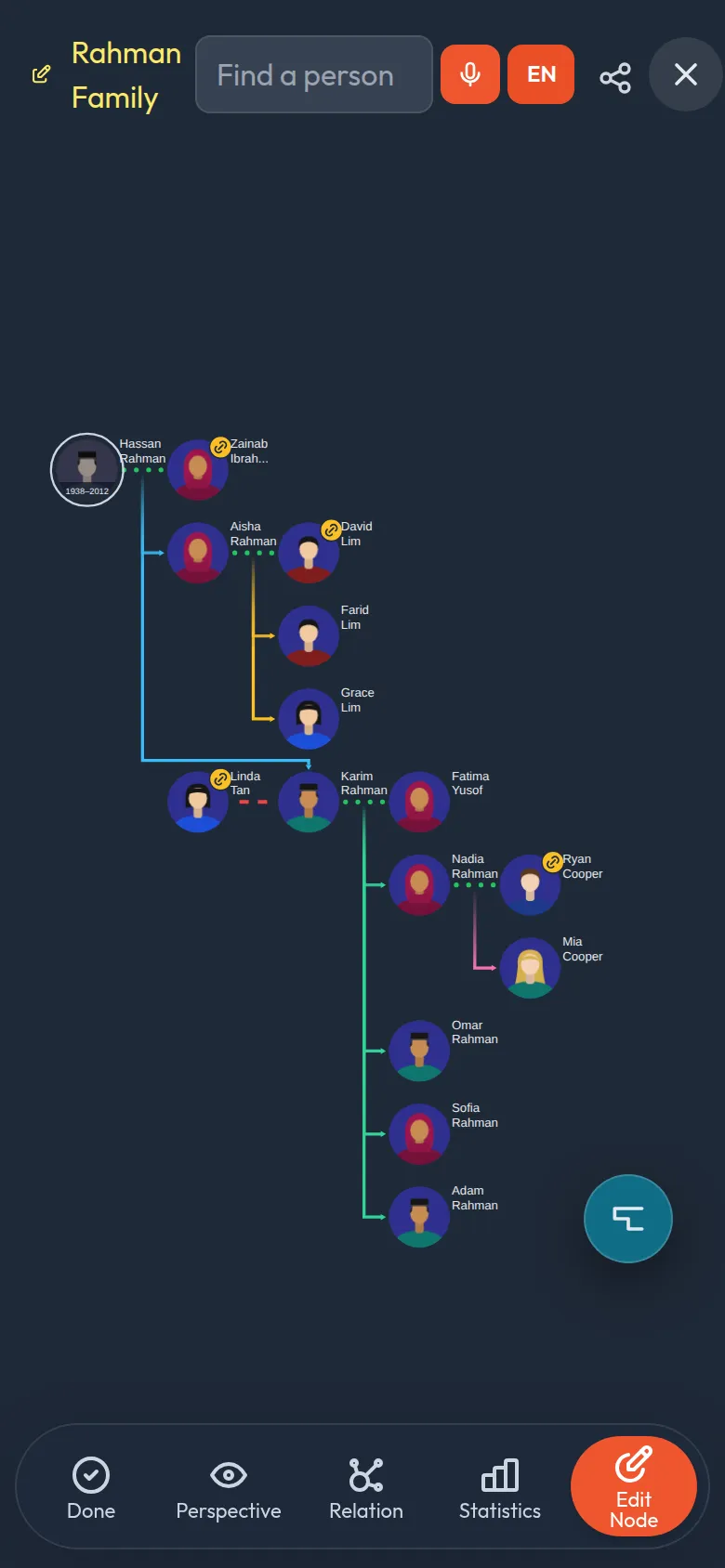
| Where | What it is |
|---|---|
| Top left (pencil and name) | The tree's name. |
| Search box ("Find a person") | Searches this tree only: names, nicknames, years and the details written about people (contact, residence, hobbies, picture captions). Type a few letters and tap a result to jump to that person. |
| Share icon (three dots joined) | Gets a link or QR code to share the tree (lesson 9). |
| × (top right) | Closes the tree and returns to your list. |
| Bottom bar | Done (leave), Perspective (view from a person), Relation (how two people are related, lesson 13), Statistics (counting a family, below) and Edit Node (start editing, lesson 5). |
How a tree is drawn
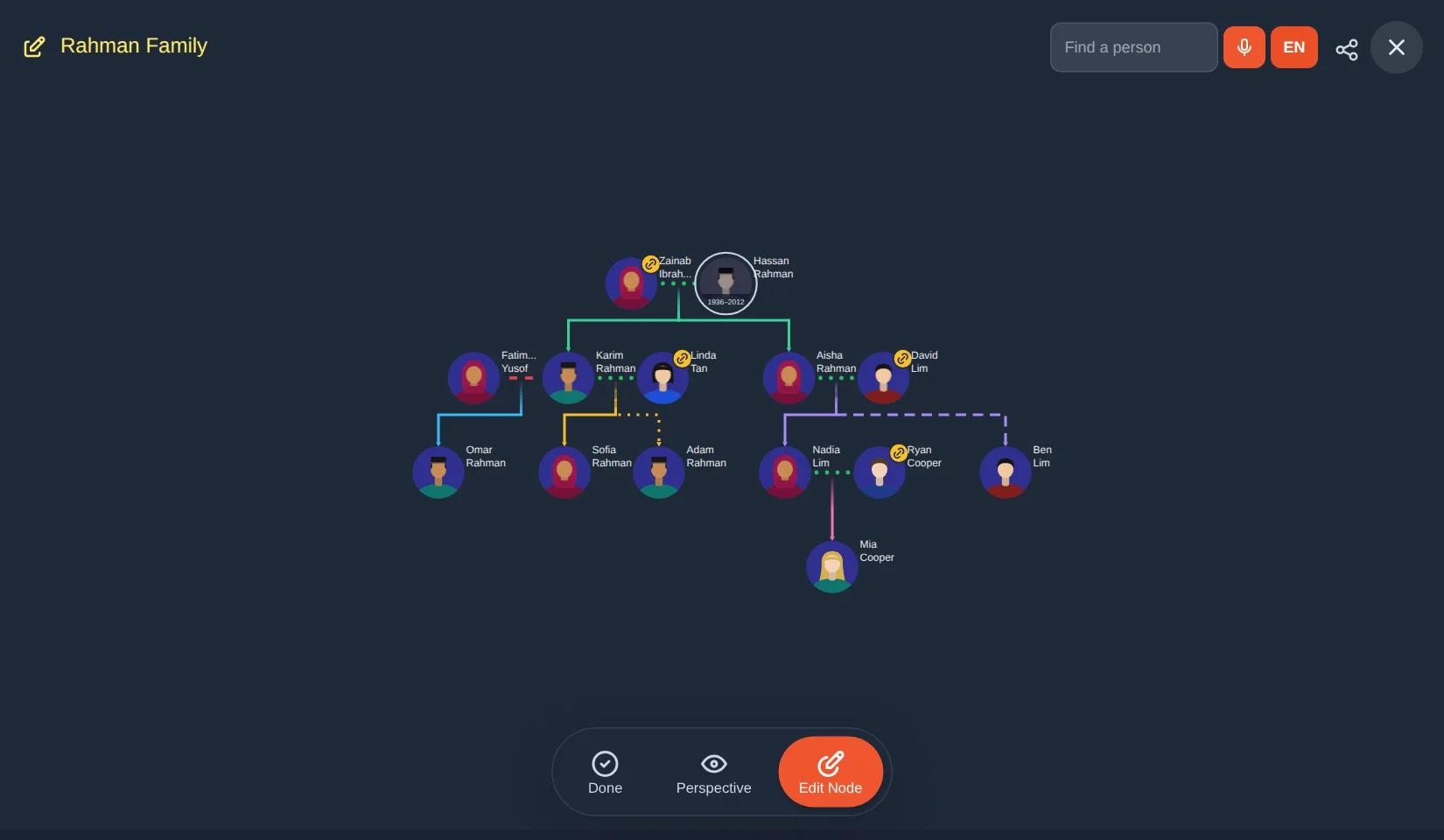
- Each circle is a person with a portrait and a name beside it.
- Couples sit side by side, joined by a short line. Dots mean married (green). Red dashes mean divorced.
- Children hang below their parents. A line leaves the couple and ends in an arrow at each child.
- Each family branch has its own colour. That is only to help your eyes follow a line.
- A person who has passed away has their years in their portrait, such as 1936–2012.
- A gold chain badge on a person means they also appear in another tree (lesson 10).
The line style tells you how a child belongs
| Line | Meaning |
|---|---|
| Solid line | Birth child |
| Long dashes | Foster child |
| Dots | Adopted child |
| Dash and dot | Step child |
Moving around
| On a phone | On a computer |
|---|---|
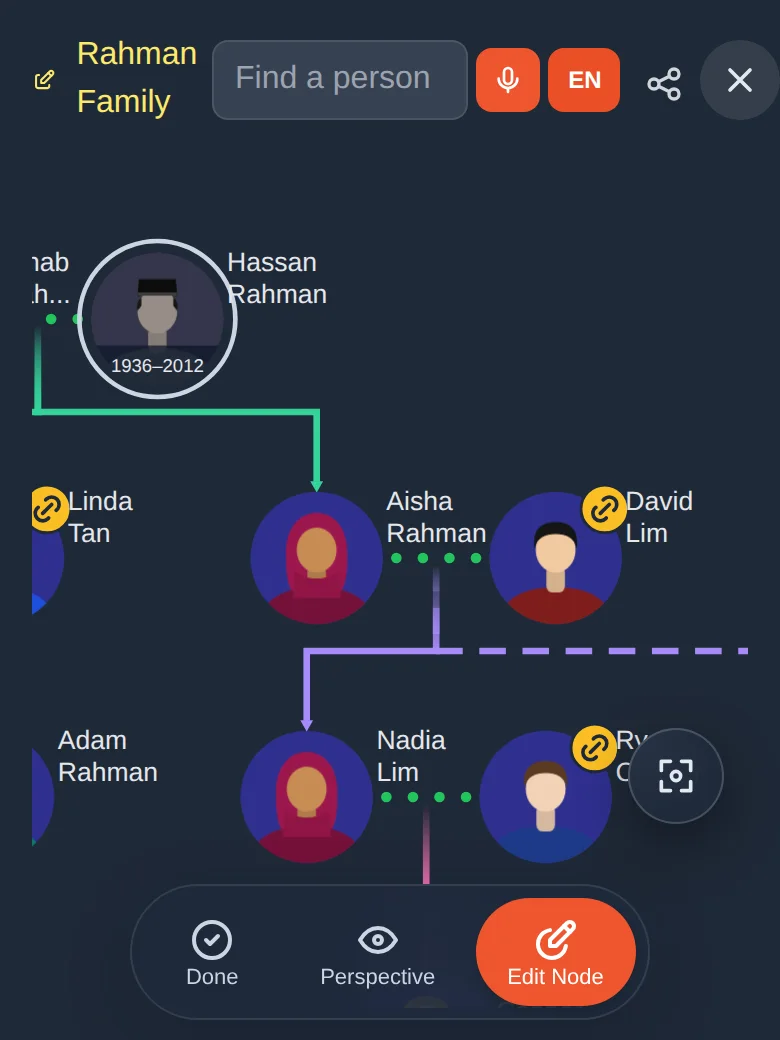
| Drag with one finger to move the tree | Click and drag to move |
| Pinch two fingers to zoom in or out | Use the mouse wheel to zoom |
| Tap the small focus button (square with a dot) at the bottom right to centre the whole tree again | Click the same focus button |
If you ever zoom or drag too far, tap the focus button. The whole tree comes back, centred.
Finding a person in a big tree
Tap the Find a person box at the top.
Type a few letters of the name. Matching people are listed with their birth year.
Tap the person you want. The tree jumps to them and highlights them.
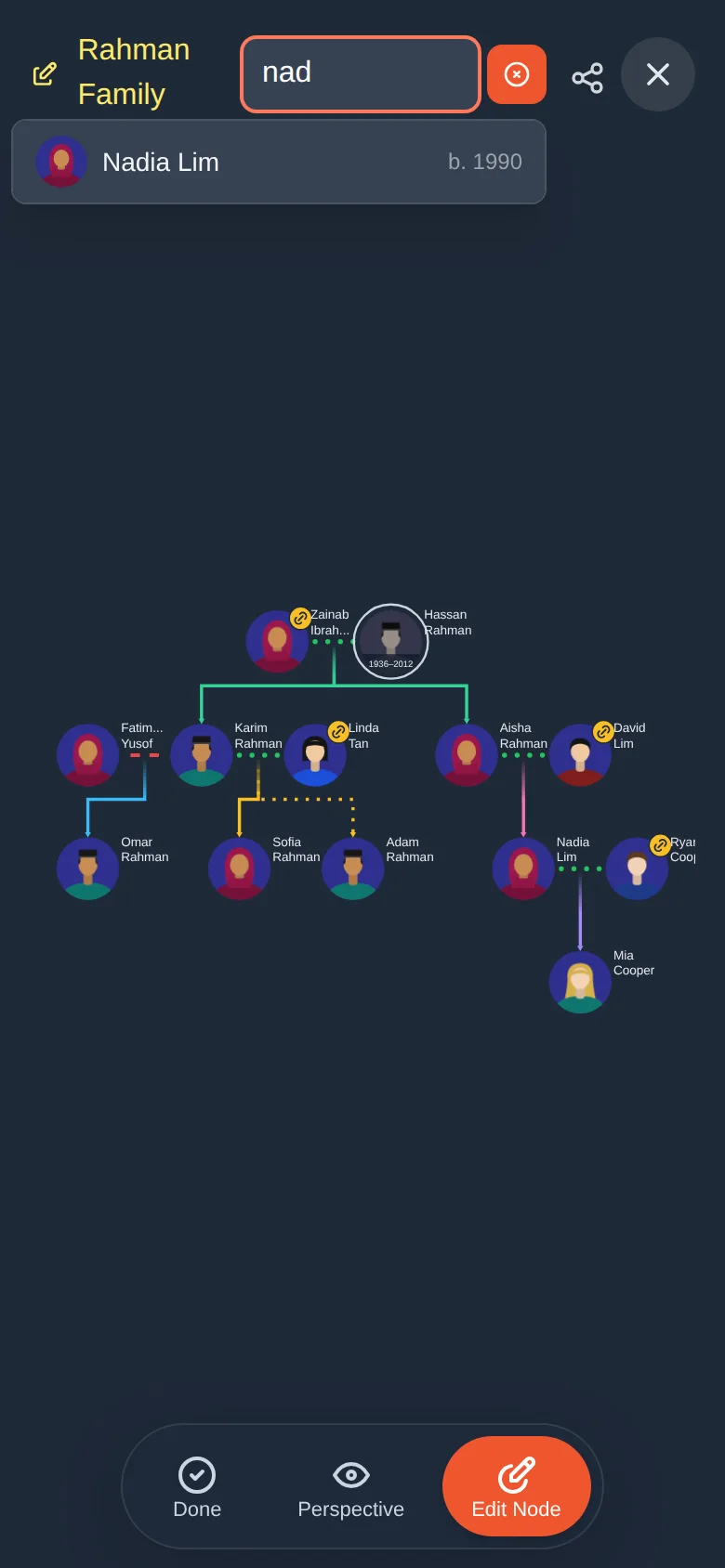
Seeing more about a person
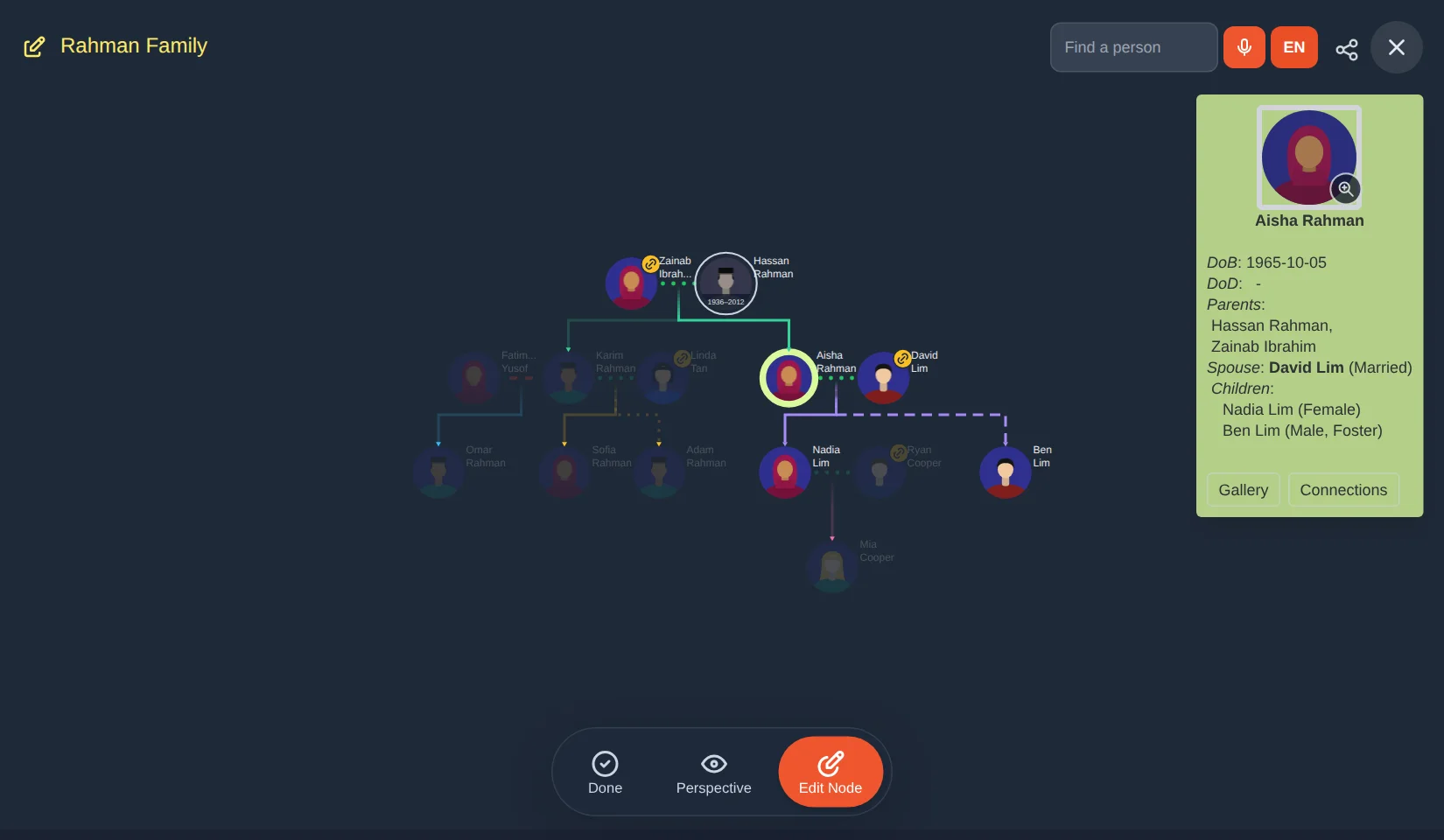
On a computer, click a person. A green information card opens: birth and death dates, parents, spouse, children and any extra details. It also has two buttons, Gallery and Connections. Click an empty space to close it.
On a phone, press and hold a person for about half a second. A menu rises from the bottom with everything you can do from there.
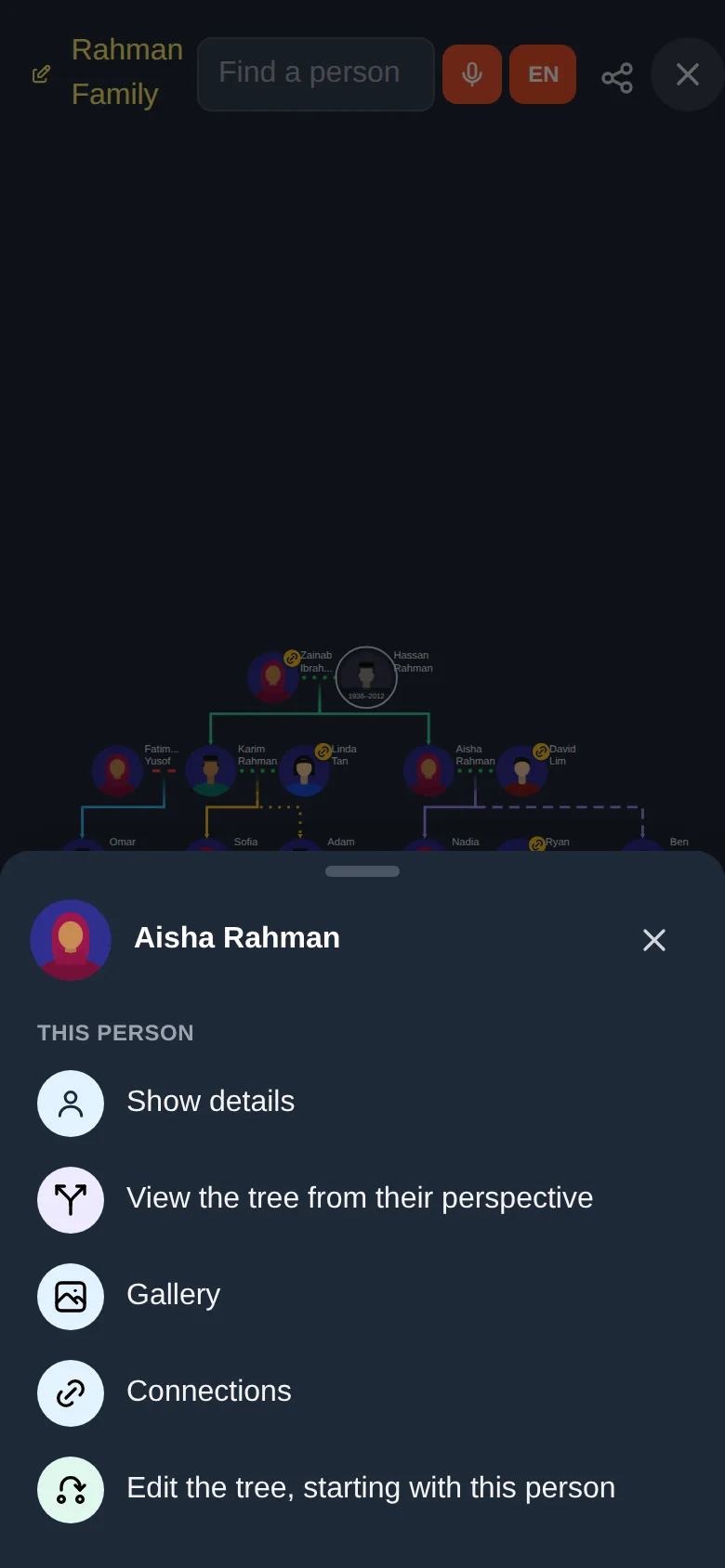
| Menu item | What it does |
|---|---|
| Show details | Opens the same information card as on a computer. |
| View the tree from their perspective | See the next section. |
| Gallery | Their pictures, audio and video (lesson 8). |
| Connections | Other trees this person is also in (lesson 10). |
| Edit the tree, starting with this person | Starts editing (lesson 5). |
In the information card, tap the small portrait to see the original photo full size, if one was uploaded.
Wide or tall
A big family drawn the usual way is much wider than the screen. The layout button (above the fit-to-screen button, at the bottom right) switches between two layouts:
- Wide: every generation is a row and each family's children stand side by side.
- Tall: a couple stays side by side, but its children are listed one under the other, each child's own family hanging below them, a little to the right. A line runs down beside the children with an arrow into each. It is much narrower, so it suits a phone: scroll and pinch up and down.
On a phone held upright, a big family opens in Tall by itself. Your choice is remembered: for a tree, on this device; for a connected family, in your account. In the connected view the Branches menu has the same switch.
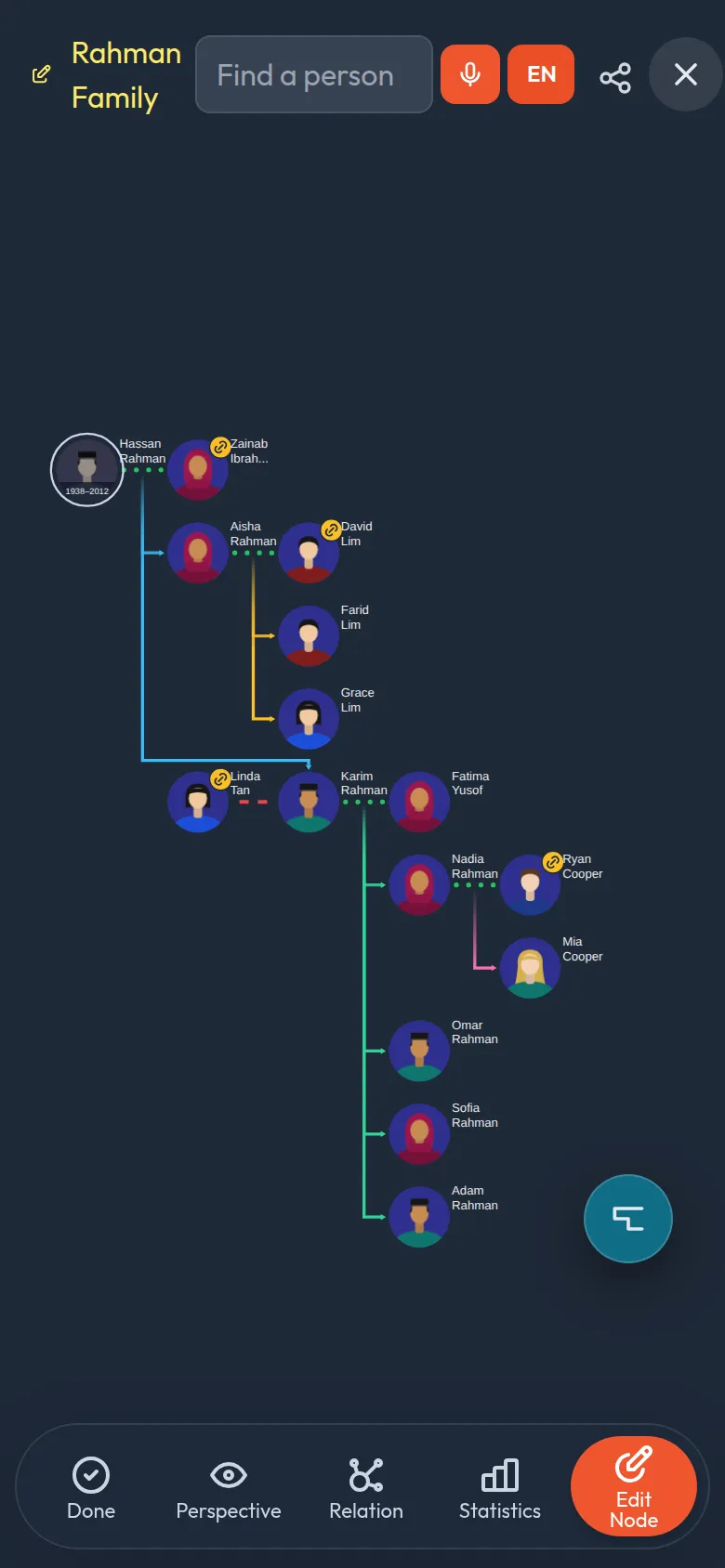
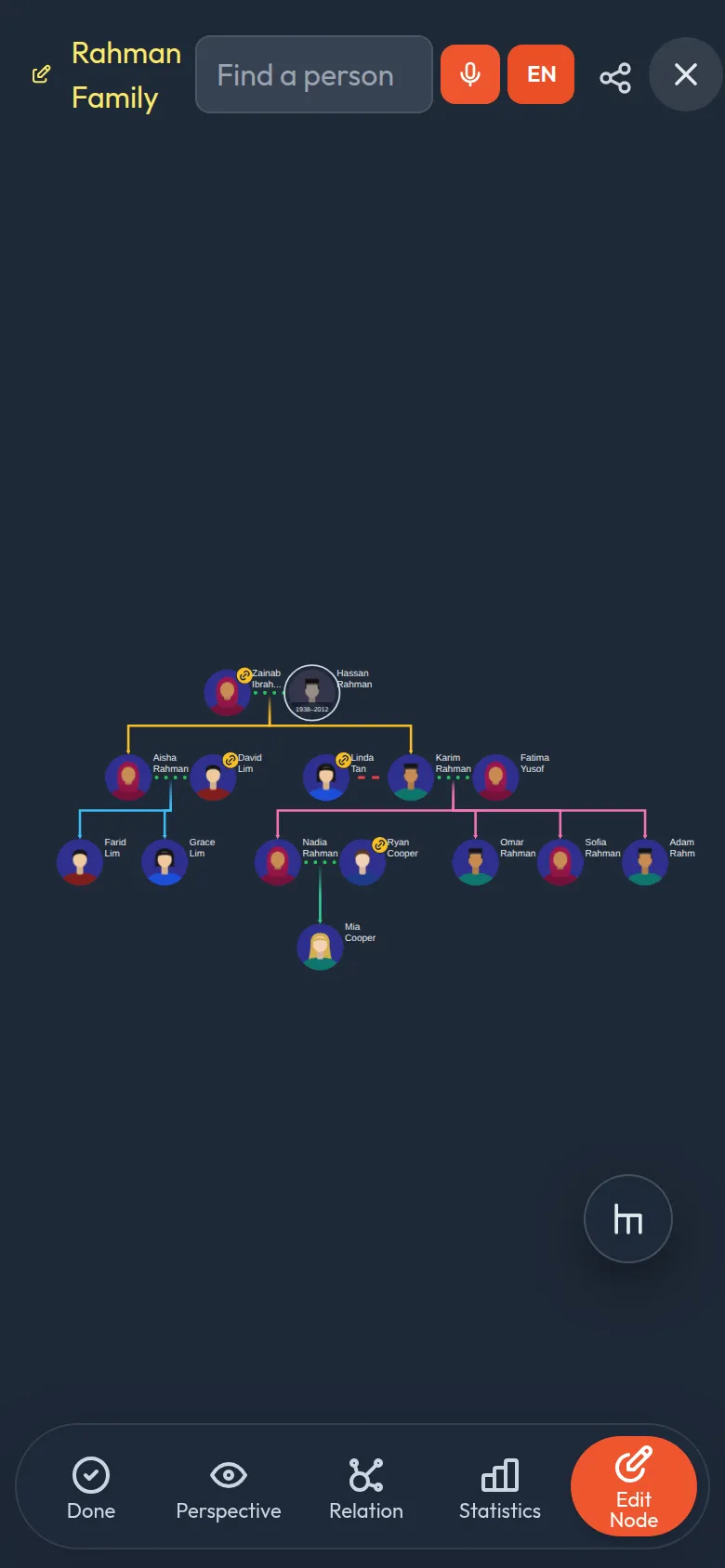
A person who married in keeps one place, under their partner's family. Their own parents, if they are in the tree, are joined to them by a faint dotted line.
Counting a family: statistics
How many grandchildren? How many have passed on? Statistics counts everyone below a person, generation by generation.
Tap Statistics in the bottom bar. A bar says "Tap a person to count everyone below them". (Or press and hold a person and choose Family statistics from here.)
Tap the person. A table opens with one row for each of their children. The first column counts the child and their partner; the next ones are the generations below that child (children, grandchildren, great-grandchildren…), then Total members, Passed on, Living, the number of Women and Men, and the Oldest living person. The last row, Total, adds up every column. In a long table the headings and the Total row stay in view while the rows scroll.
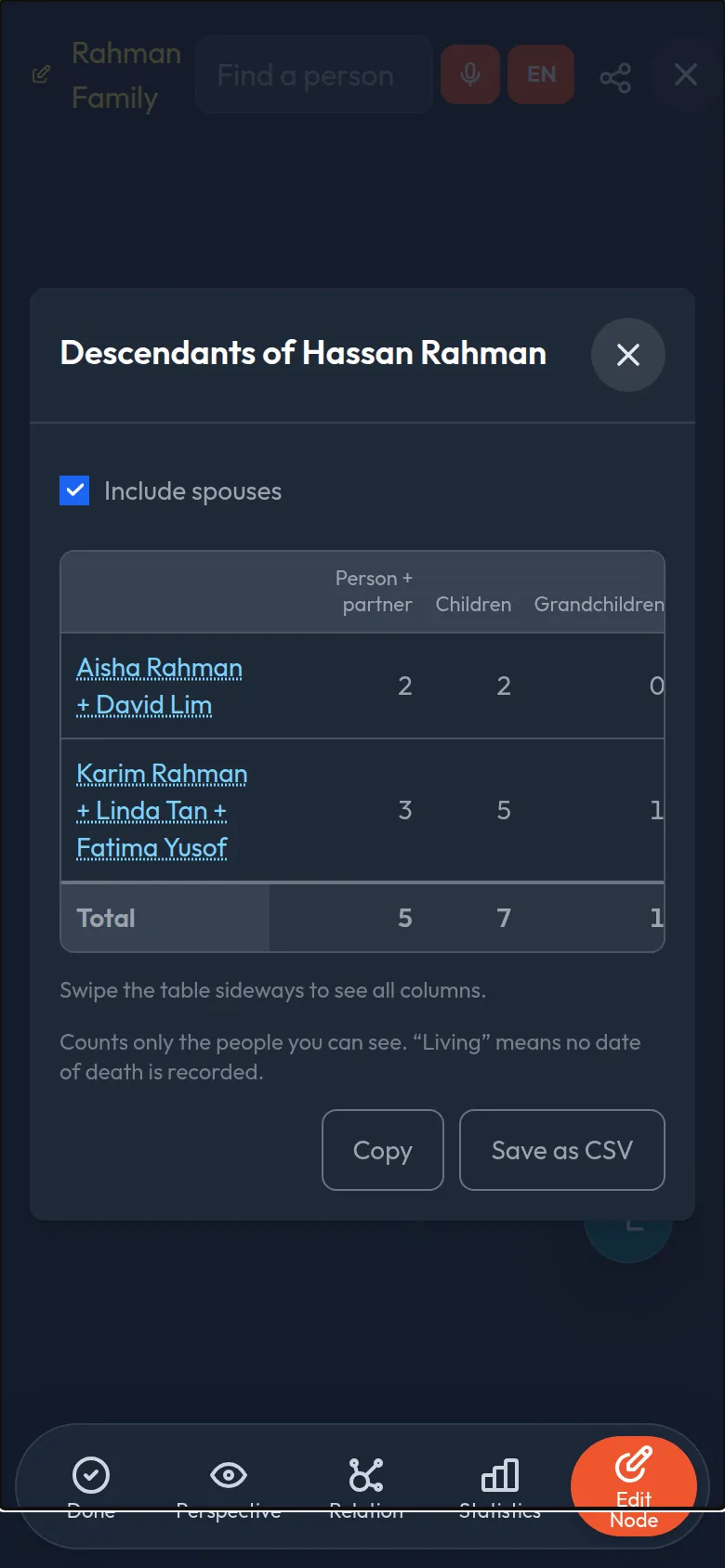
- Include spouses (on at first) counts people who married in together with their partner. Switch it off to count only the descendants by birth. The row names the person and their partner (for example Isahak Ahmad + Zaliha Md. Taiff). The first column, Person + partner, counts the person and their partner(s), so every total matches the people kept in colour when you tap a name.
- Tap Total to see everyone the table counts, all rows at once, in the tree.
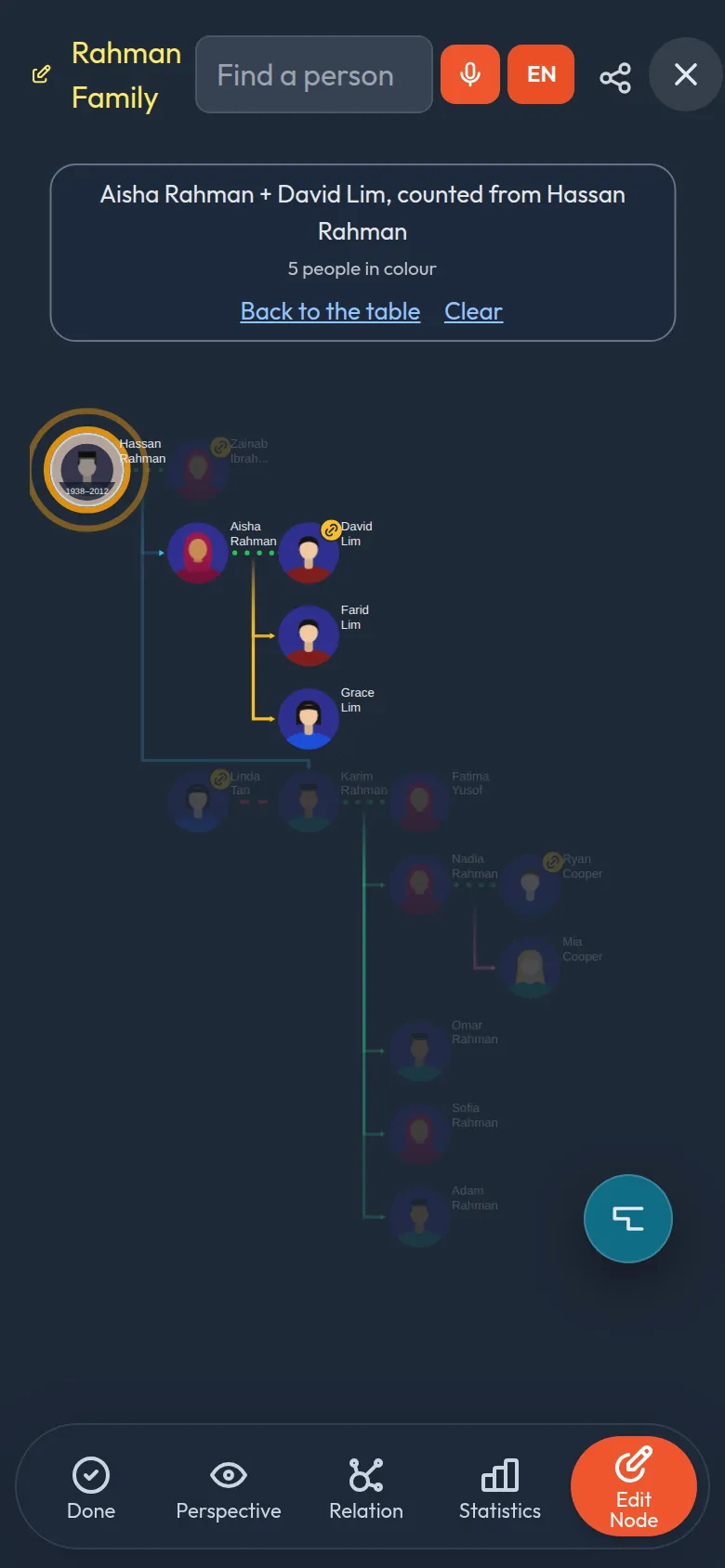
- Tap a name in the table to see that branch in the tree: the person you started from gets an amber ring that pulses for a few seconds, the branch stays in colour and the rest fades. A bar says what you are looking at, with Back to the table and Clear; a tap anywhere also puts everything back.
- Whole tree in the bar (Whole forest in a connected family) counts every founding family at once.
- Copy puts the table in your clipboard to paste into a message; Save as CSV makes a file for a spreadsheet.
Only the people you can see are counted, and Living simply means no date of death is recorded: someone who has died but has no date counts as living. Add the dates (lesson 6) for the best numbers.
Seeing the tree from someone's point of view
A family tree reads differently depending on who you are. Perspective redraws the tree so that one person is the centre.
Tap Perspective in the bottom bar. A message says "Tap a person to view the tree from their perspective".
Tap the person you want as the centre. The tree is redrawn around them, and a message confirms "Now viewing from … perspective".
Tap the same person again to go back to the normal view.
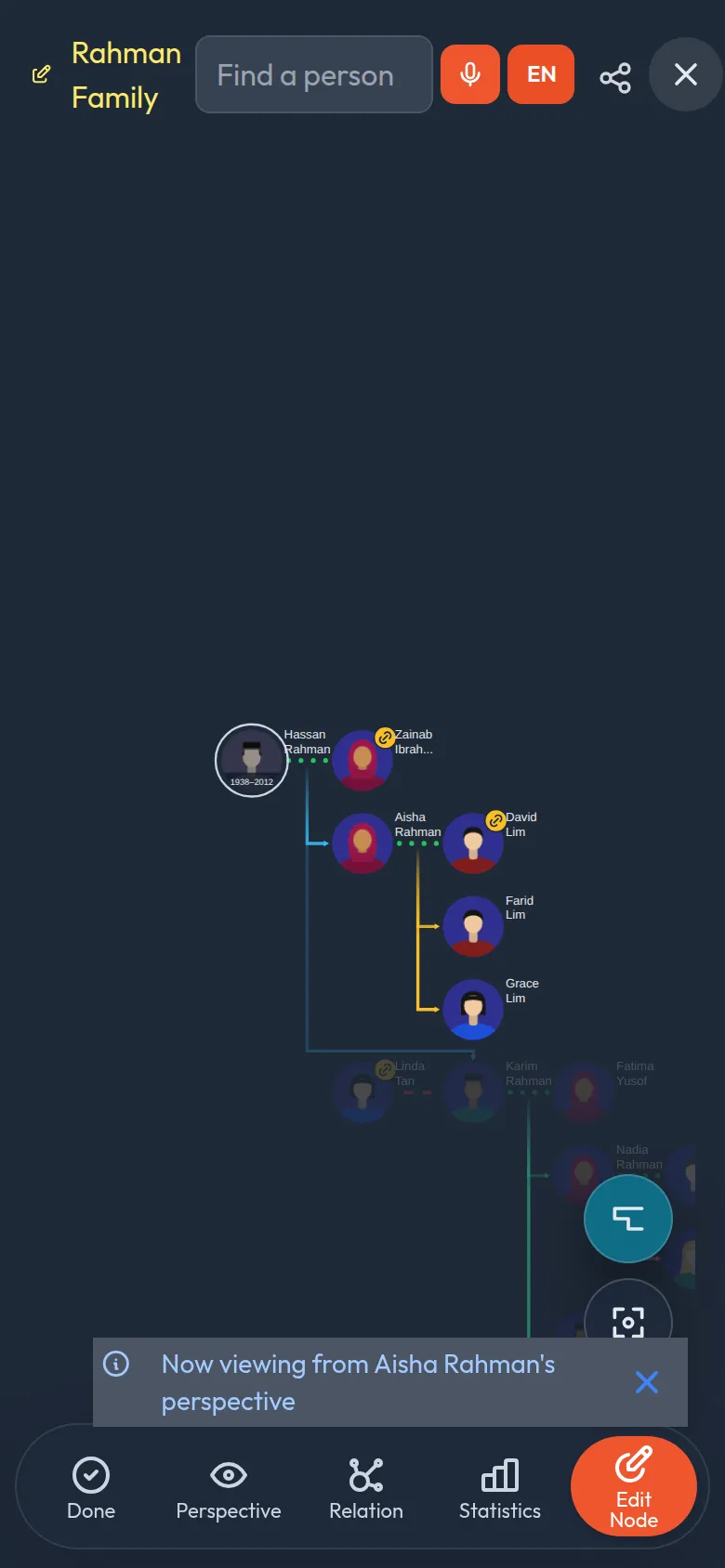
On a phone you can also choose View the tree from their perspective in the press-and-hold menu.
Try it yourself
- Open a tree and zoom in and out. Use the focus button to bring it back.
- Find a person with the search box.
- Open someone's information card (click on a computer, press and hold on a phone).
- Try Perspective on a person, then tap them again to return.
Remember
- Dots between a couple mean married; red dashes mean divorced.
- The style of the line to a child shows birth, foster, adopted or step.
- Press and hold (phone) or click (computer) a person for details.
- Looking is safe. Nothing changes until you press Edit Node.