 Asal Ku Training
Start here › Lesson 9
Sharing a tree with relatives
Give relatives a link or QR code, choose whether they can only look or also help, and understand what they will see.
In this lesson you will learn
- The difference between sharing for viewing and sharing to a manager
- How to create a share link and QR code, and send it
- What your relative sees and does to accept it
- How to tell, in your list, which trees are shared and how
- How a relative removes a shared tree from their list
- How to invite a named person by email, so that only they can open the tree
- How you take access back from a person, or turn a link off
Two kinds of sharing
| Share for View-Only | Share to a Manager | |
|---|---|---|
| They can look at the whole tree, its details and its gallery | Yes | Yes |
| They can add, change and delete people, links and pictures | No | Yes |
| They can undo and redo their own changes | – | Yes |
| They can delete the whole tree | No | No (only the owner) |
| Their pictures use… | – | The owner's storage |
A manager can change and delete people. They cannot delete the tree itself, but they can do a lot of damage. A relative who just wants to look should get View-Only.
Create a share link
Open the tree you want to share.
Tap the share icon (three dots joined by lines) at the top right.
Choose Share for View-Only or Share to a Manager.
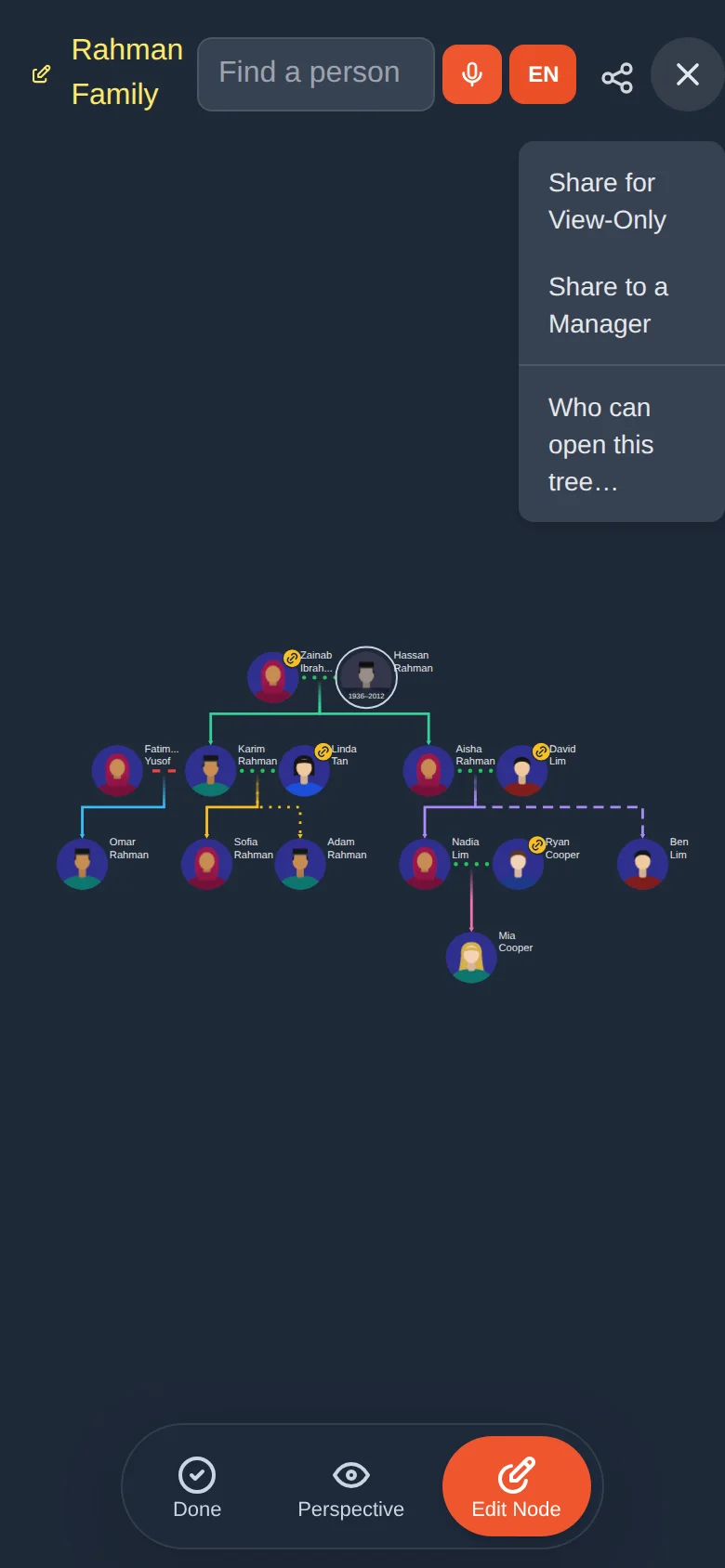
A window appears with a QR code and a link. A short sentence says what the link allows.
Send it the way that suits you:
- In person: let your relative point their phone camera at the QR code, or tap Scan QR in their Asal Ku list and scan it.
- By message: tap Copy link and paste it into WhatsApp, Messages, email or any chat.
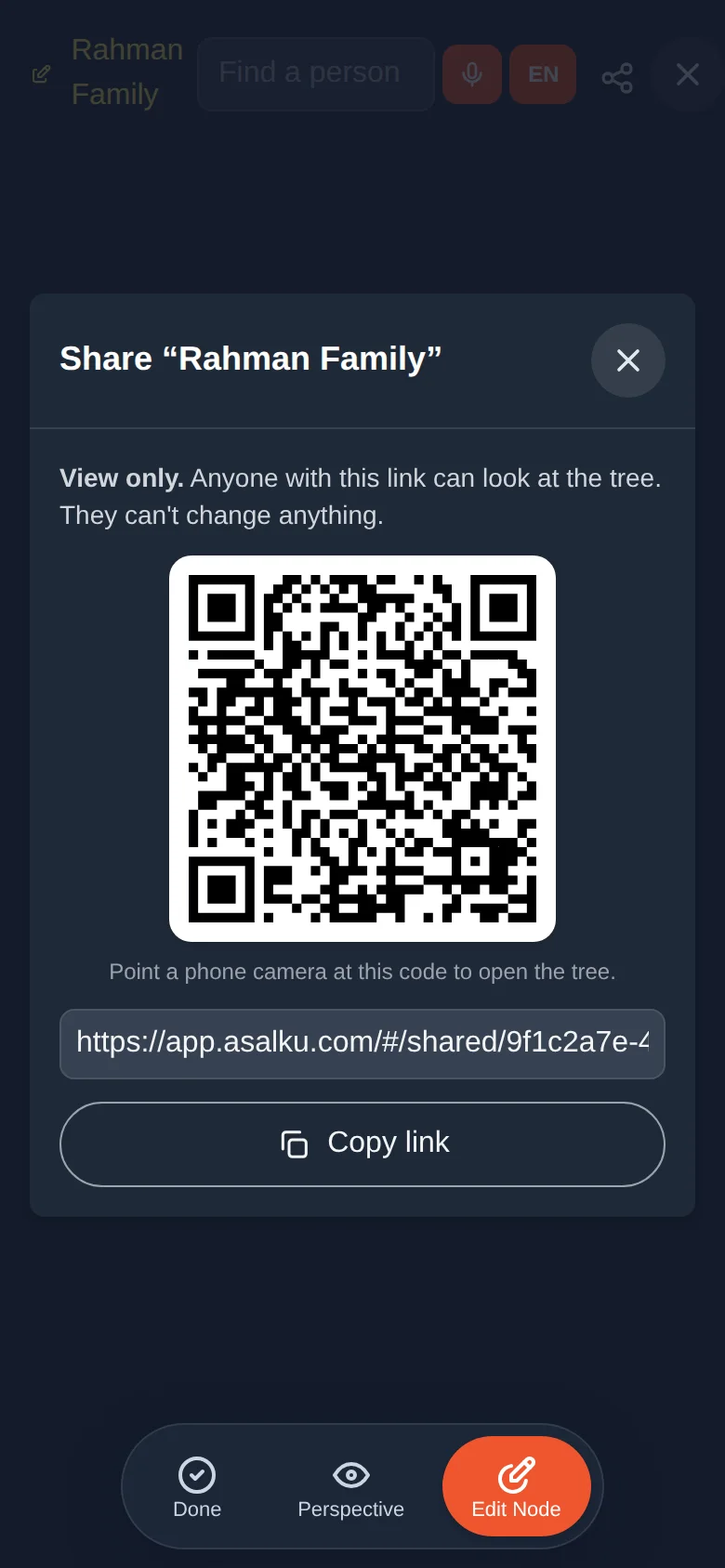
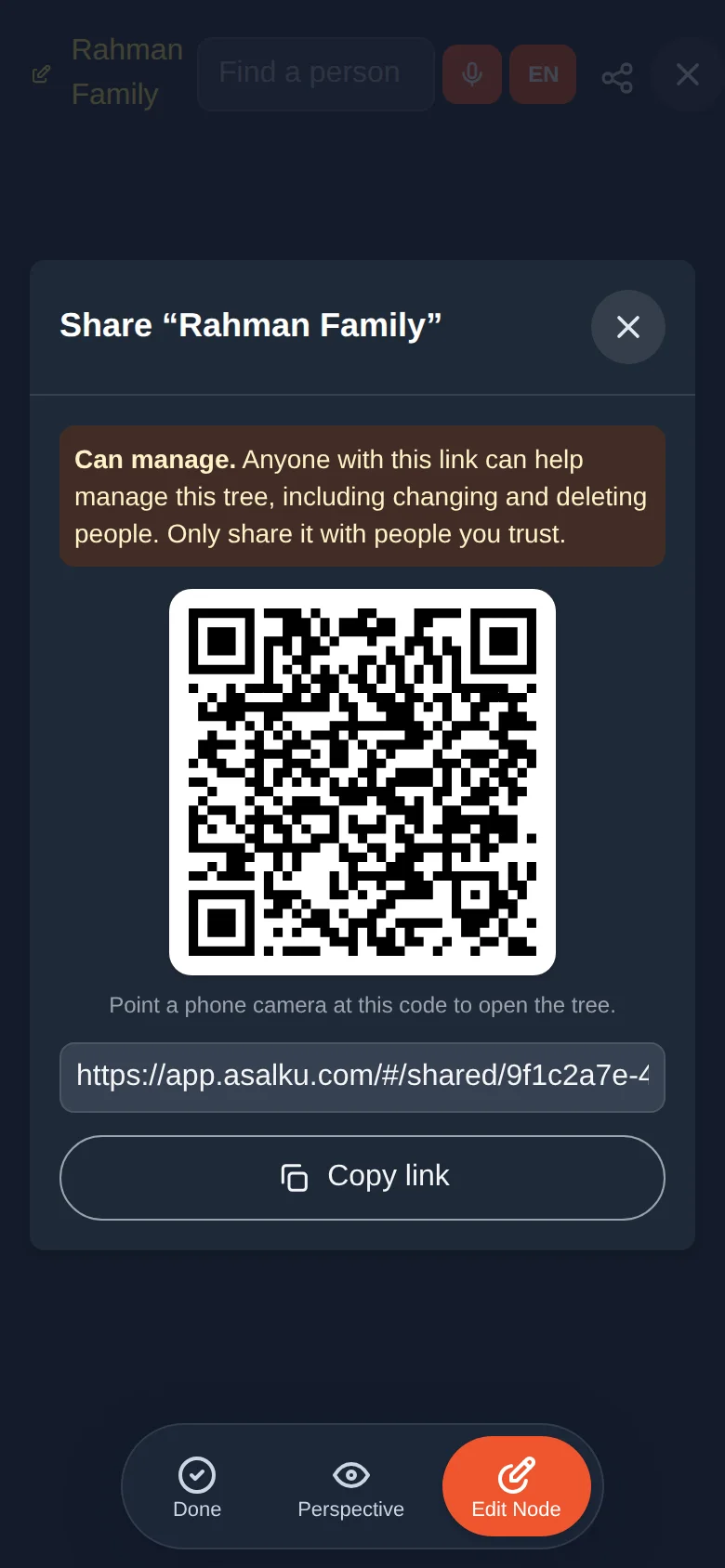
A share link works for whoever has it. Send it privately, not on a public page or group you do not control.
Invite a named person instead
A link works for anyone who gets hold of it. When you want to share with one particular person, send an invitation, like sharing a document. Only someone signed in with the email address you typed can use it. If they forward it, it does not work for anyone else.
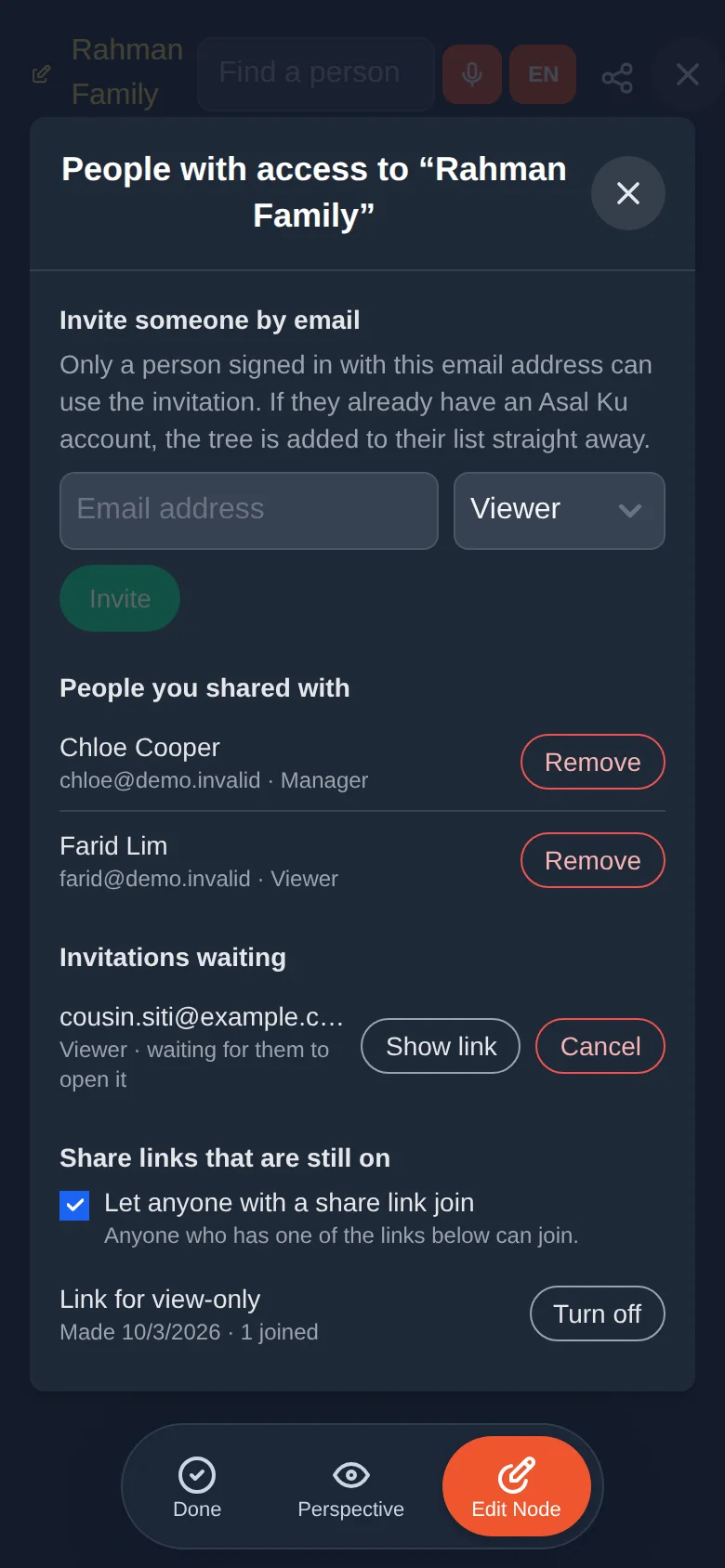
Open the tree, tap the share icon and choose Who can open this tree….
Under Invite someone by email, type their email address, choose Viewer or Manager and tap Invite.
What happens next depends on whether they already use Asal Ku:
- They have an account: the tree is added to their Shared tab straight away and they see a message. You have nothing more to send.
- They do not have an account yet: Asal Ku shows a window with the invitation's QR code and link. Send it to them as you would any link. When they sign up with that email address and open it, they get in.
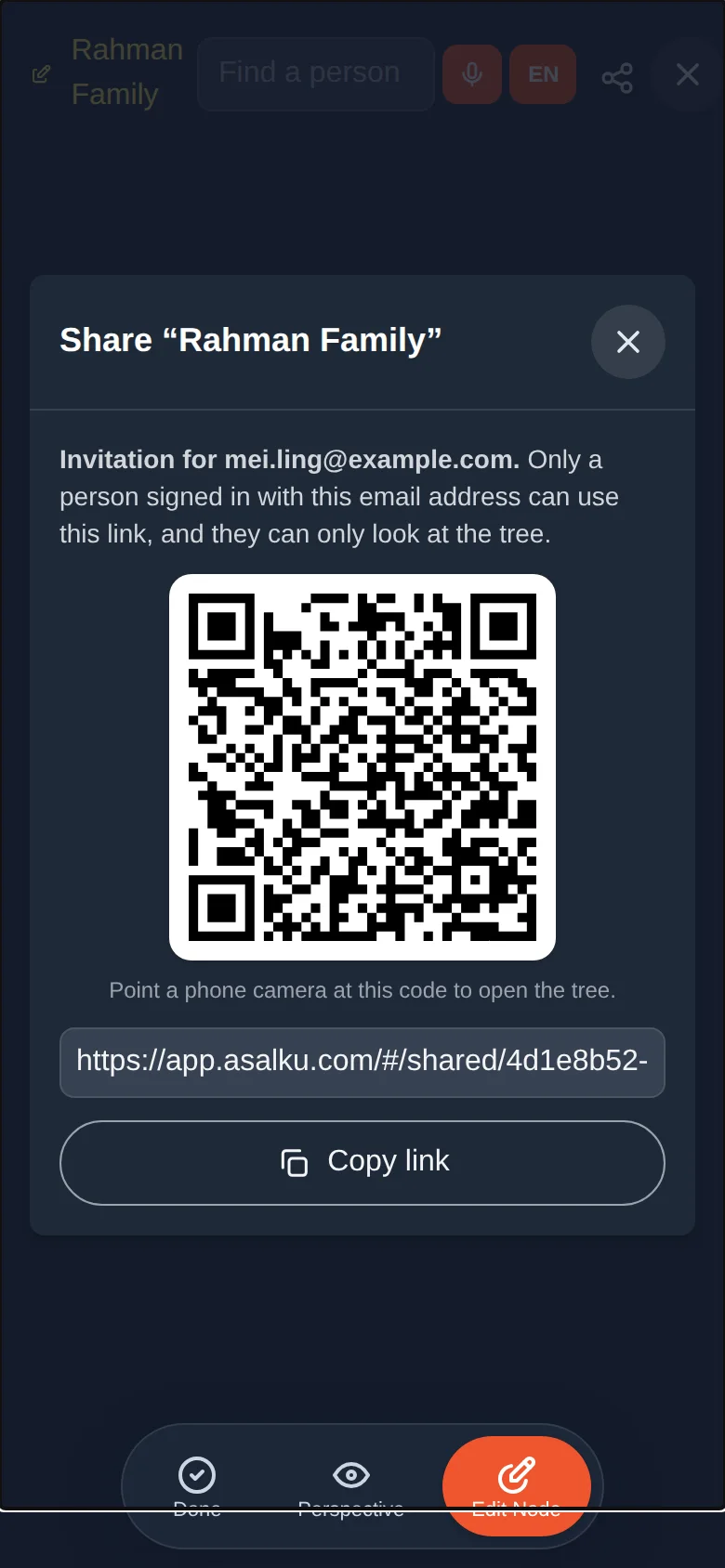
The invitation matches the email of the Google account the person signs in with. If they open it while signed in with another address, Asal Ku tells them the invitation is for a different one, and they should sign in with the right account.
What your relative does
They open the link, or scan the code.
If they are not signed in, they sign in with Google (lesson 2). A first-time visitor creates an account at the same time.
The tree is added to their Shared tab. A message confirms whether they can view it or help manage it.
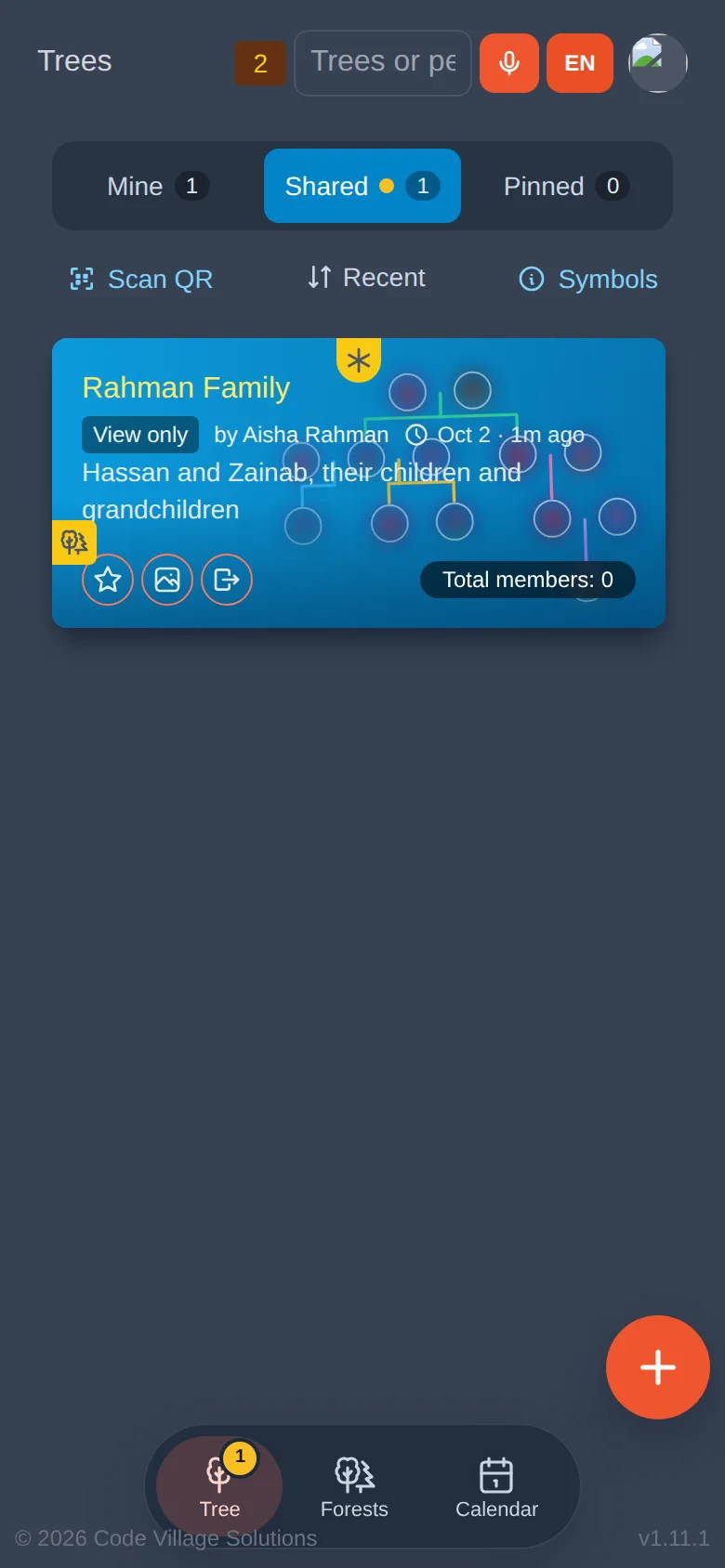
The owner does nothing more. The relative now has access until they remove it.
See who has access to what
- On your list, the tree shows an eye badge if you shared it for viewing, and a share badge if you share it to a manager. Tap Symbols to read them (lesson 3).
- On your relative's list, the card shows View only or Manager and the name of the owner ("by Aisha Rahman").
Removing a shared tree
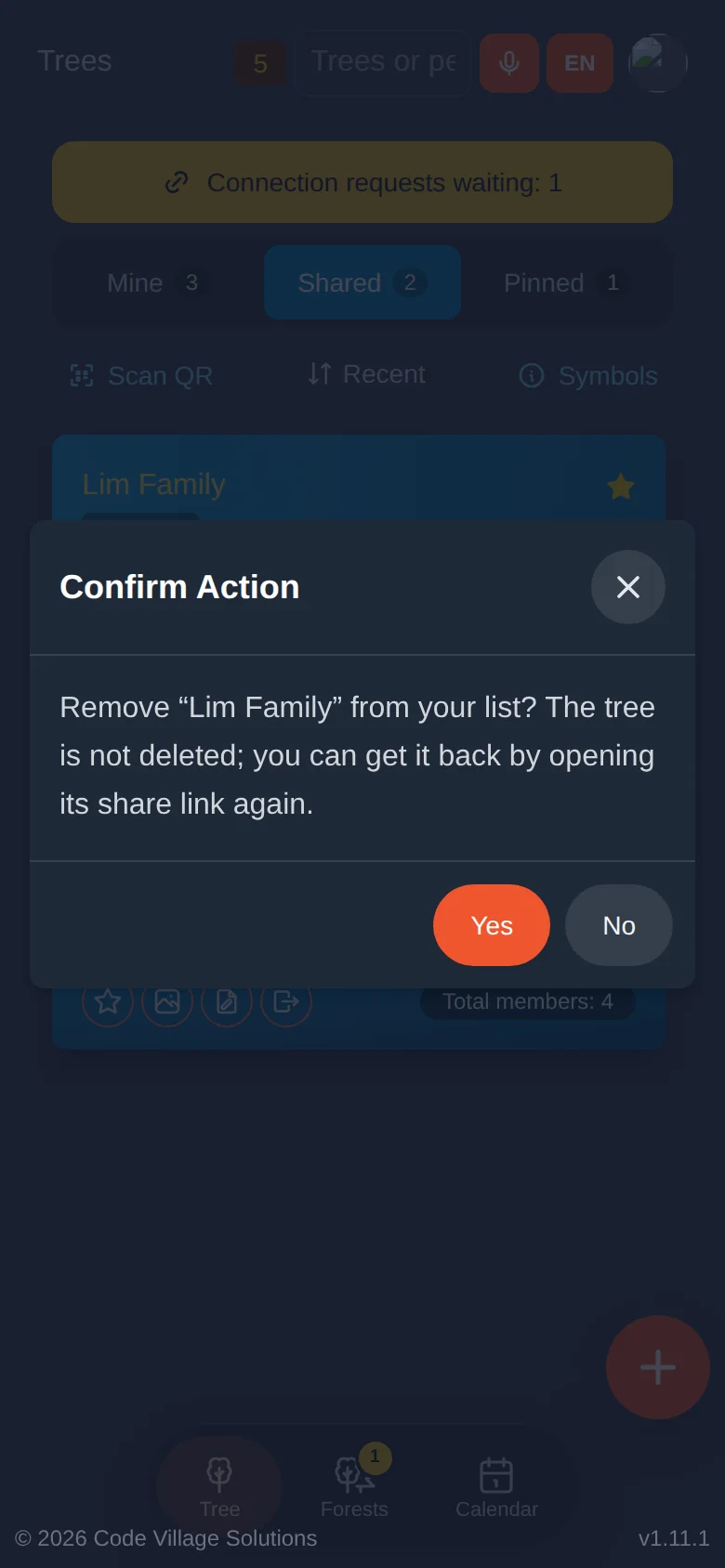
A relative who no longer wants a shared tree taps the Leave button on its card and confirms. The tree is only removed from their list. The owner's tree, and everyone else's access, is unchanged. They can get it back by opening the link again.
Taking access back
Shared with the wrong person, or the wrong tree? As the owner you can undo it at any time.
Open the tree and tap the share icon.
Choose Who can open this tree…. A window lists everyone who has access, marked Manager or Viewer, then the invitations still waiting, and last the share links that are still on.
To remove a person, tap Remove next to their name and confirm. The tree leaves their list straight away, and if they have it open it closes. They are told that you removed their access. If they joined with a share link that is still on, Asal Ku asks whether to turn that link off too, because otherwise they could use it again. An invitation to their address is cancelled automatically.
To cancel an invitation nobody has used yet, tap Cancel next to it. Show link shows its QR code and link again.
To stop one link working, tap Turn off next to it and confirm. Nobody can join with that link any more. If people had already joined through it, Asal Ku asks whether to remove them as well. Choose No to let them keep their access.
To stop every share link at once, untick Let anyone with a share link join. The links are paused, so only people you invite by email can join, and people already in keep their access. Tick it again to bring the links back.
Removing someone does not delete anything. The tree and your pictures stay as they are, and you can share with the same person again later with a new link. Only the owner sees this list. A manager cannot remove people.
Taking access back stops future visits. It cannot un-see what a person already looked at. For a sensitive tree, turn off the link and remove the people who should not have it.
Changes made by others
When a relative changes a tree you share, you see a yellow updated badge on its card next time (lesson 3), and the yellow number on the bottom Tree button counts it.
Try it yourself
- Open your Practice Tree and create a View-Only link.
- Copy it and send it to yourself, or to a relative who is happy to help you test.
- Ask them to open it and tell you what they see on their Shared tab.
Remember
- View-Only: look only. Manager: look and edit (not delete the tree).
- A link is the key. Anyone who has it can use it, until you turn it off. An invitation only works for the address you typed.
- The owner can remove any person, or turn off a link, from Who can open this tree….
- Leaving a shared tree only removes it from your own list.