 Asal Ku Training
Start here › Lesson 14
Marking yourself and tagging people in photos
Tell Asal Ku which person is you, then tag who is in a photo and see how everyone in it is related to you and to each other.
In this lesson you will learn
- How to mark which person in a tree is you ("This is me")
- How to tag who is in a photo, from a gallery or from a new photo
- How to see how the people in a photo are related to you and to each other
- How to find every photo a person appears in
- How Find people draws a box around everyone on your phone, and what Asal Ku does not do: it never recognises anyone
Tell Asal Ku which person is you
Asal Ku can only say "your aunt" or "your cousin" if it knows who you are in the tree. This is a private setting: it is kept for you, tree by tree, and nobody else sees it.
Open the tree and press and hold your own name (on a computer, click it).
Choose This is me.
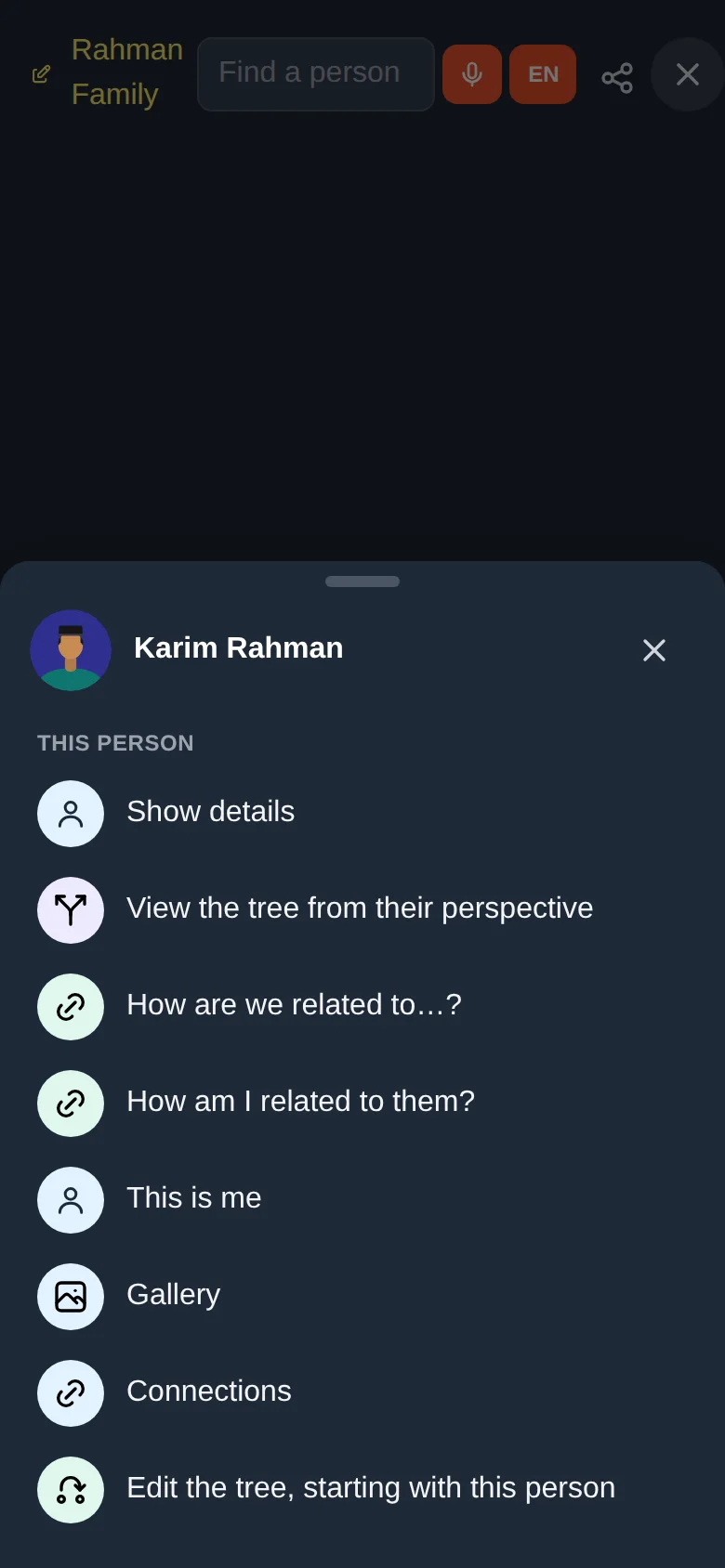
A message confirms it. From now on your name shows "(you)" in the menu and in answers, and the same menu has How am I related to them? for everybody else. Choose This is not me on your own name to undo it. Anyone who can open the tree can do this for themselves; it changes nothing for anyone else.
Where you will see it
- On a computer, click anyone: the green panel shows a line under the name, To you: nephew (or "This is you" on your own panel). Click that line for the full explanation. Gallery, Connections and This is me close the panel when you click them.
- On a phone, press and hold anyone and choose How am I related to them?.
- In every answer of Relation (lesson 13), your name is followed by "(you)".
- In photo tags (below), where each person is shown "to you".
Tag who is in a photo
A tag is a numbered marker you place on a person in a picture, with their name. There are two ways to start.
From a picture in a gallery
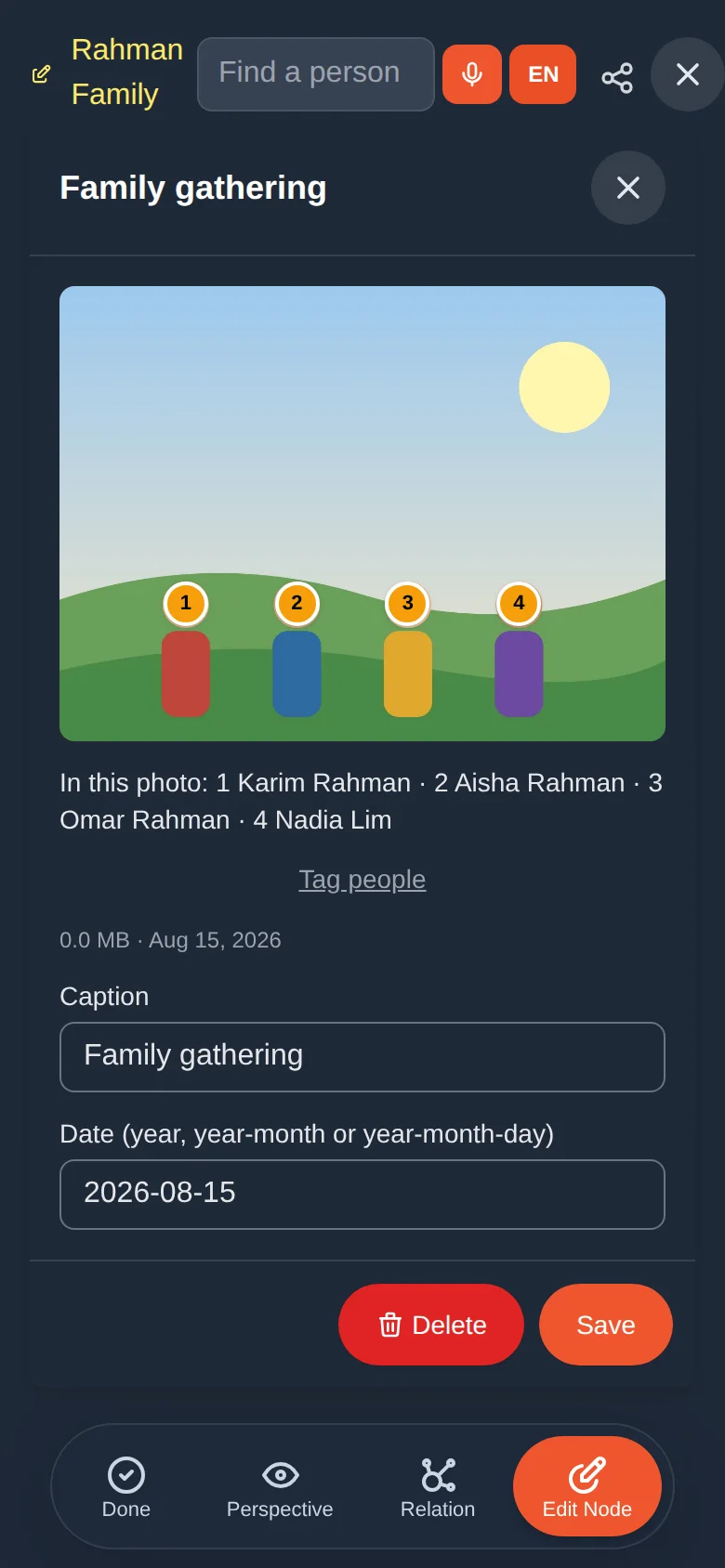
Open a person's gallery (lesson 8) and tap the picture.
Tap Tag people. (Viewers see Show the tags: only owners and managers can change tags.)
From a new photo, without adding it to a gallery
In the tree, tap Relation, then From a photo.
Tap Take a photo, or Choose a photo from your phone.
Placing the tags
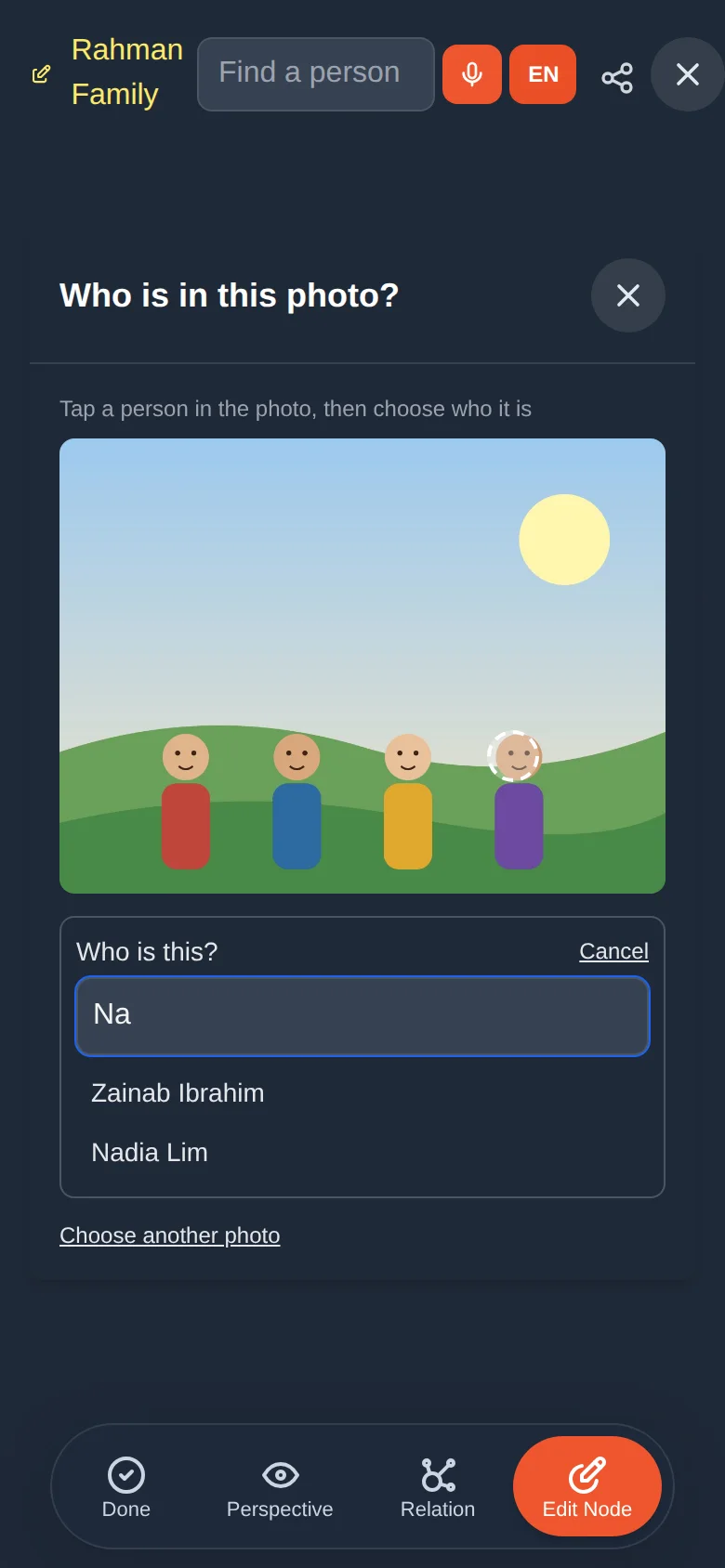
Tap a person in the picture. A dashed circle appears where you tapped, and a box asks Who is this?
Type a few letters of the name and tap the right person. The marker becomes a numbered circle.
Repeat for each person. To take a tag back, tap the ✕ beside the name in the list.
Let your phone find the people
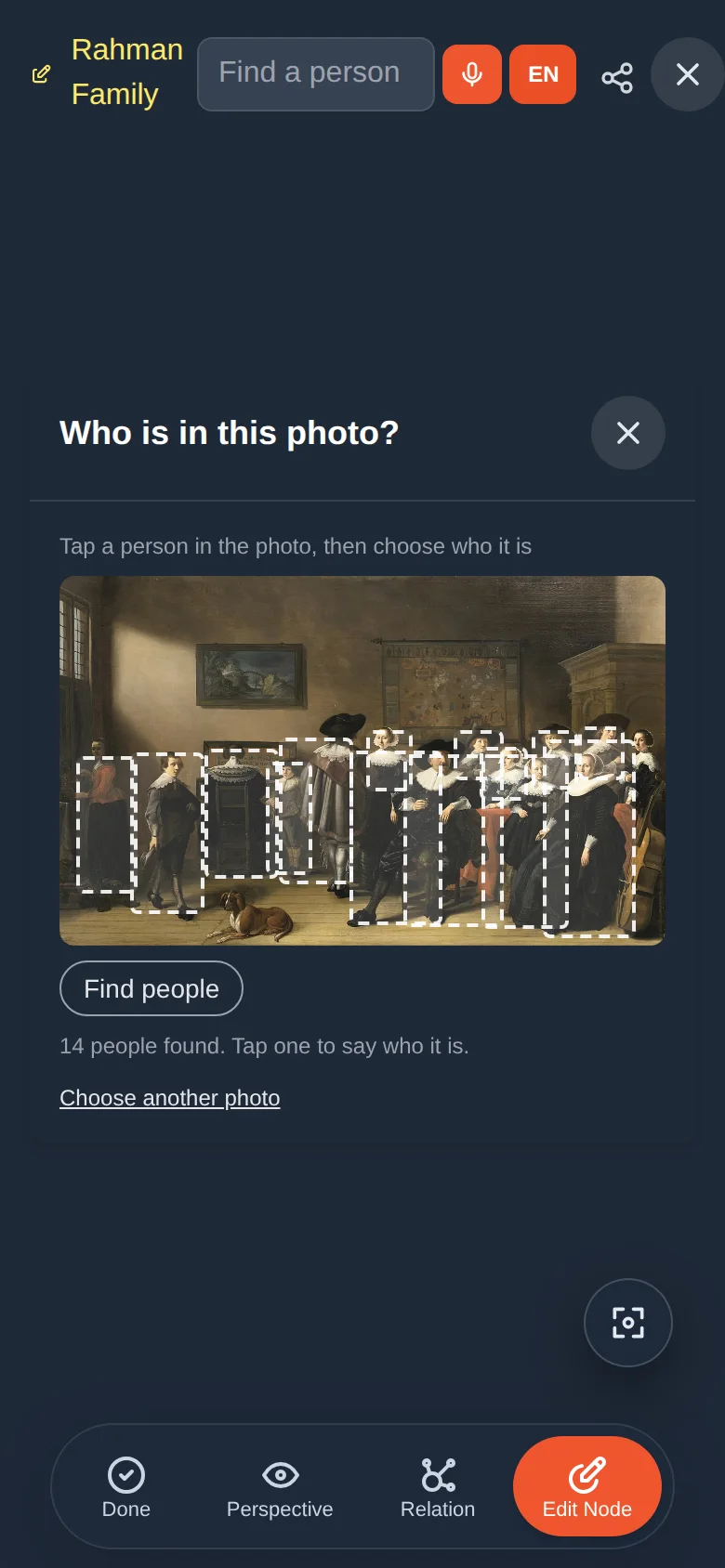
In a group photo it is quicker to tap a box than a face. Under the picture, tap Find people.
The first time, Asal Ku asks you to agree to Finding people in photos on your phone. Read it and tick the box.
A progress bar shows what is happening: Getting the finder ready with a percentage (about 16 MB, the first time only; later it is already on your phone), then Starting the finder…, then Looking for people…. If it takes longer than ten seconds a note says it is still working, so you know it has not stopped.
After a moment dashed boxes appear around the people it found, and a line says how many. The picture is looked at on your phone and is not sent anywhere.
Tap a box, search for the name and choose who it is. The box becomes solid and numbered.
Missed someone, or a box is wrong? Tap the picture where they are and tag them by hand, as before.
The finder needs a little memory. A phone that reports very little memory, or a browser that cannot run it, is not asked to try, and the line under the picture says so. If it runs out of memory while working, it stops with a message. Either way nothing is lost: you can always tap the picture to tag people by hand. The picture is also shrunk before it is looked at, so a large photo does not need extra memory.
How everyone is related
As you tag, the list under the picture shows each person with how they are related to you ("to you: older brother"). Below it, How they are related to each other lists every pair ("Aisha → Omar: nephew"). Tap a pair to read the full explanation, with the steps between them (lesson 13). The words follow the language you chose in Settings.
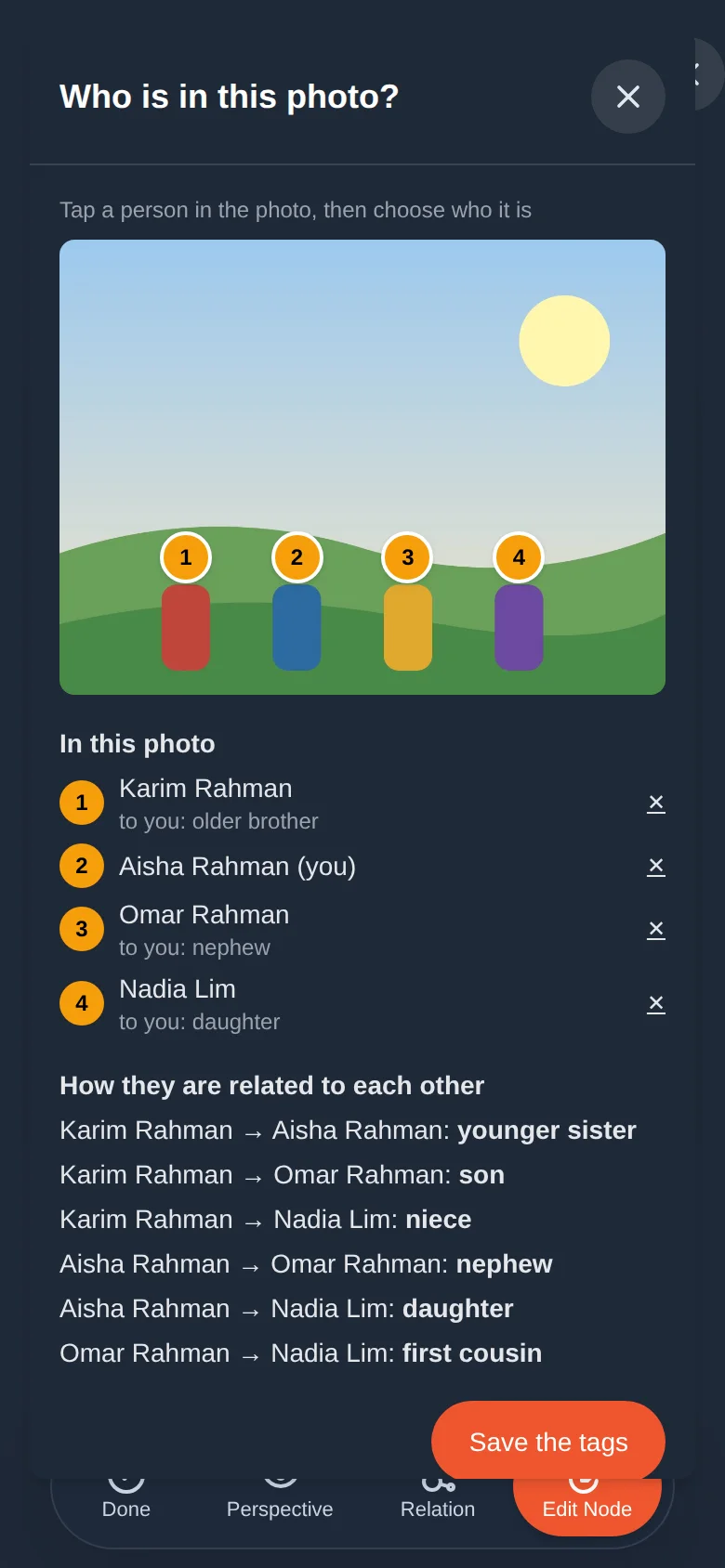
Saving
- A picture from a gallery: tap Save the tags. The tags stay with the picture.
- A new photo: if you want to keep it, choose which tagged person's gallery to put it in and tap Save photo and tags. Only owners and managers can add to a gallery. If you only wanted the answer, just close the window: nothing is stored.
Finding every photo of a person
Open a person's gallery. Below their own pictures, Also appears in shows the pictures in other people's galleries where they are tagged. That is how a group photo kept in one gallery shows up for everyone in it.
Asal Ku can find where people are in a picture, but it never works out who they are, and it makes no face data. The finder looks for people, not faces; it runs on your phone, so the picture is not sent anywhere for this; what it finds is thrown away, and only a box you tap and confirm is saved as a tag. You choose who is who, one tap at a time. Tags can only name people of the same tree, they are visible to everyone who can open the tree, and they disappear when the picture or the person is deleted.
Ask before you add someone's photo to a shared tree, especially a child's or a person who has passed away. If someone asks you to take a picture or a tag away, an owner or manager can remove it at once.
Who can do what
| Owner / manager | Viewer | |
|---|---|---|
| Mark "This is me" | Yes | Yes |
| See tags and "Also appears in" | Yes | Yes |
| Add or change tags, save a new photo | Yes | No |
| Ask how people in a new photo are related (nothing saved) | Yes | Yes |
Try it yourself
- Press and hold your own name and choose This is me.
- Open a group photo in a gallery and tap Tag people. Tag two or three relatives.
- Tap one of the pairs to read the full explanation.
- Open one of the tagged people's galleries and find the photo under Also appears in.
Remember
- This is me is private and tells Asal Ku who you are in a tree.
- Asal Ku can find the people in a picture on your phone, but it never recognises anyone: you choose who is who.
- Tagged pictures show how everyone is related to you and to each other, and appear in each person's gallery.