 Asal Ku Training
Start here › Lesson 12
Your profile and settings
Change the language, set up fingerprint sign-in, choose what you show other families, manage storage, backups and tips, and know what works offline.
In this lesson you will learn
- Where the settings are, and what each section does
- How to change the language of the whole app
- How to set up, and clean up, fingerprint or face sign-in
- How to set your default sharing choices and who can find your trees
- How to back up your own trees, and bring one back
- What happens when you have no internet
- For administrators: how to back up and move all data
Open Profile and settings
Tap your round picture at the top right, then Profile and settings. A window opens over the screen you were on, showing your name and email and a list of sections. Tap a section to open it; tap again to close it. Close the window with the round × or the Escape key, and you are exactly where you were.
Language
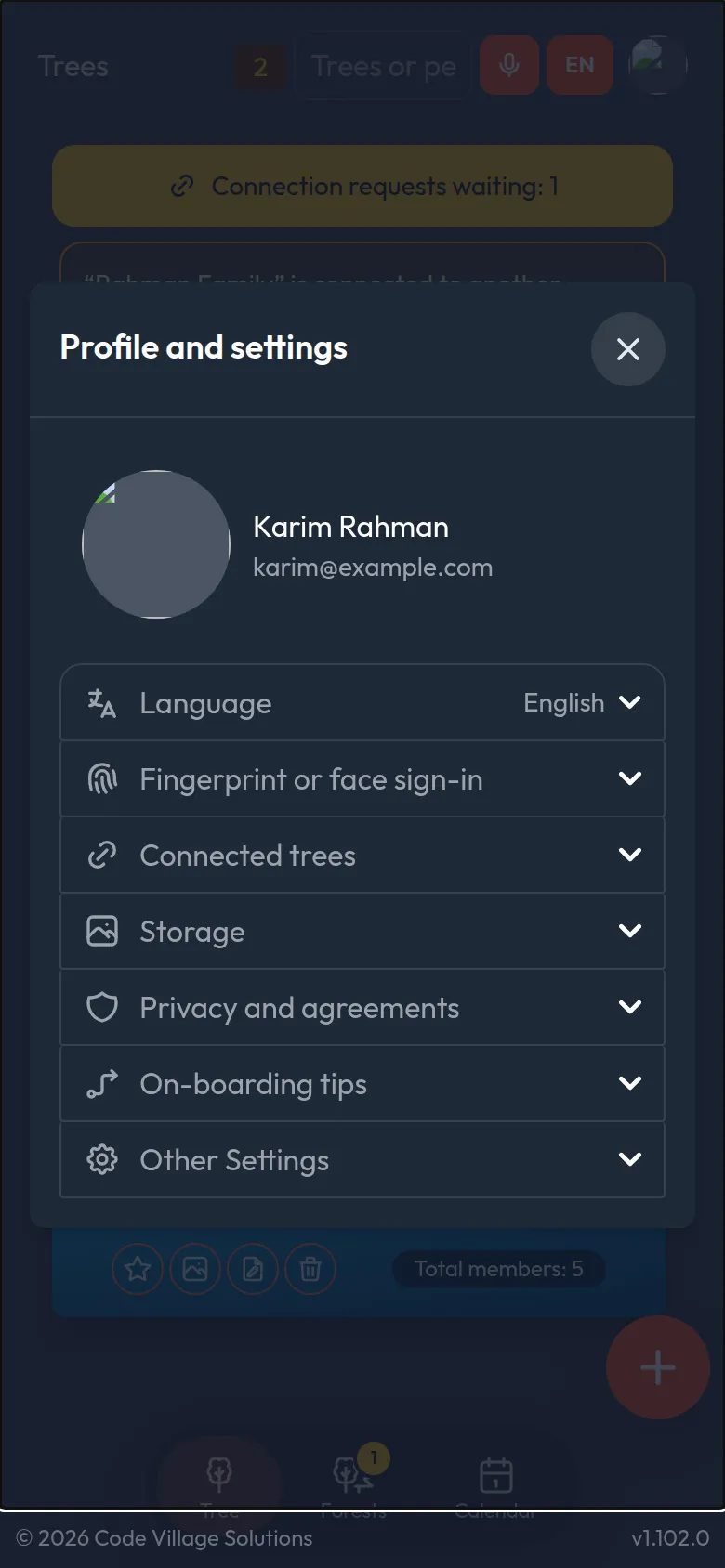
Open the Language section. The current language is shown on its right.
Choose from the list: English, Bahasa Melayu, Northern Malay, 简体中文, தமிழ், ไทย, Bahasa Indonesia or Tagalog.
Everything switches at once: menus, messages and buttons. The microphone's speaking language is a separate choice (lesson 6).
Fingerprint or face sign-in
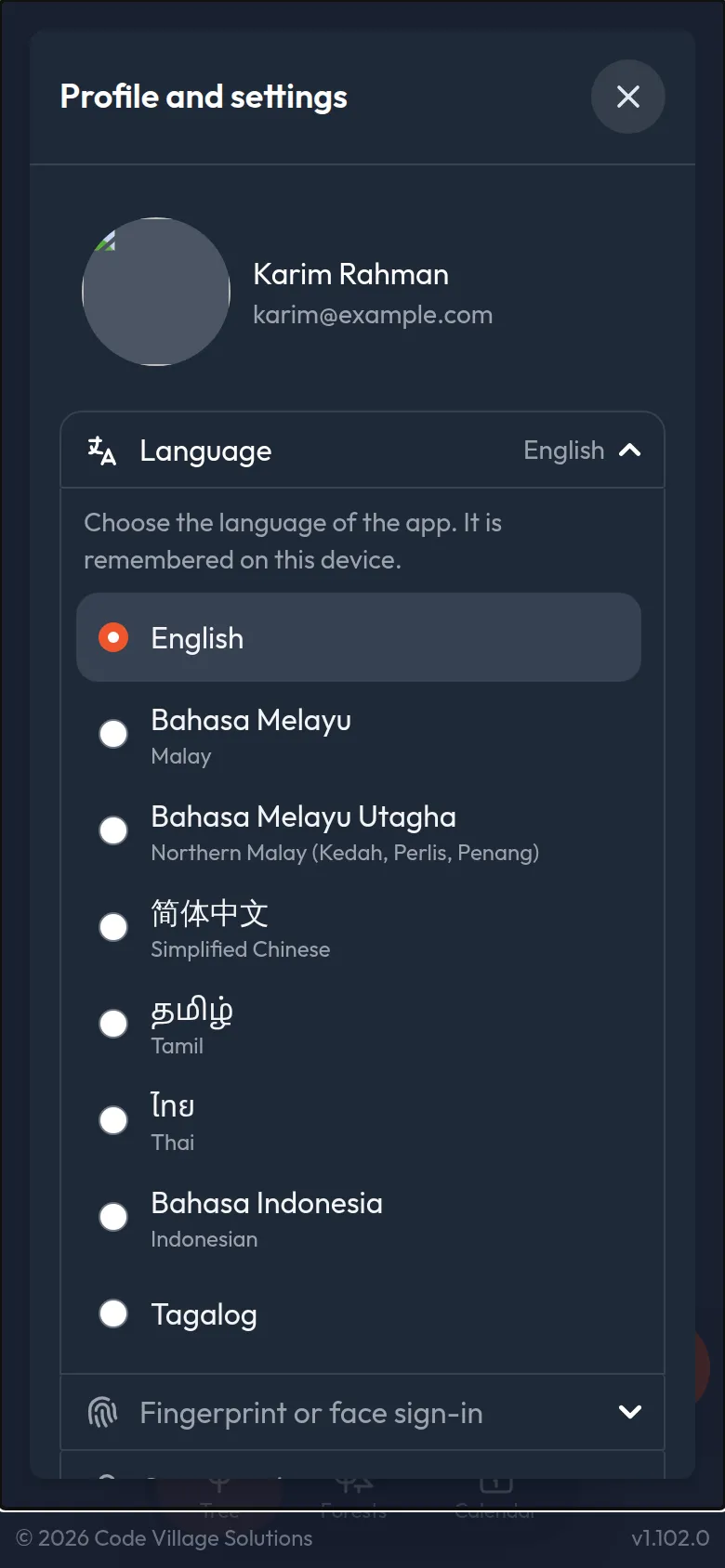
This section lets you manage the saved sign-ins on this device.
- If none is set up, you can add one.
- If more than one has been saved on this device, you can remove the extra ones. This also removes the extra "Use saved passkey?" question when you sign in.
- Your fingerprint or face never leaves your phone. Asal Ku only stores a code that lets your phone prove it is you.
Connected trees
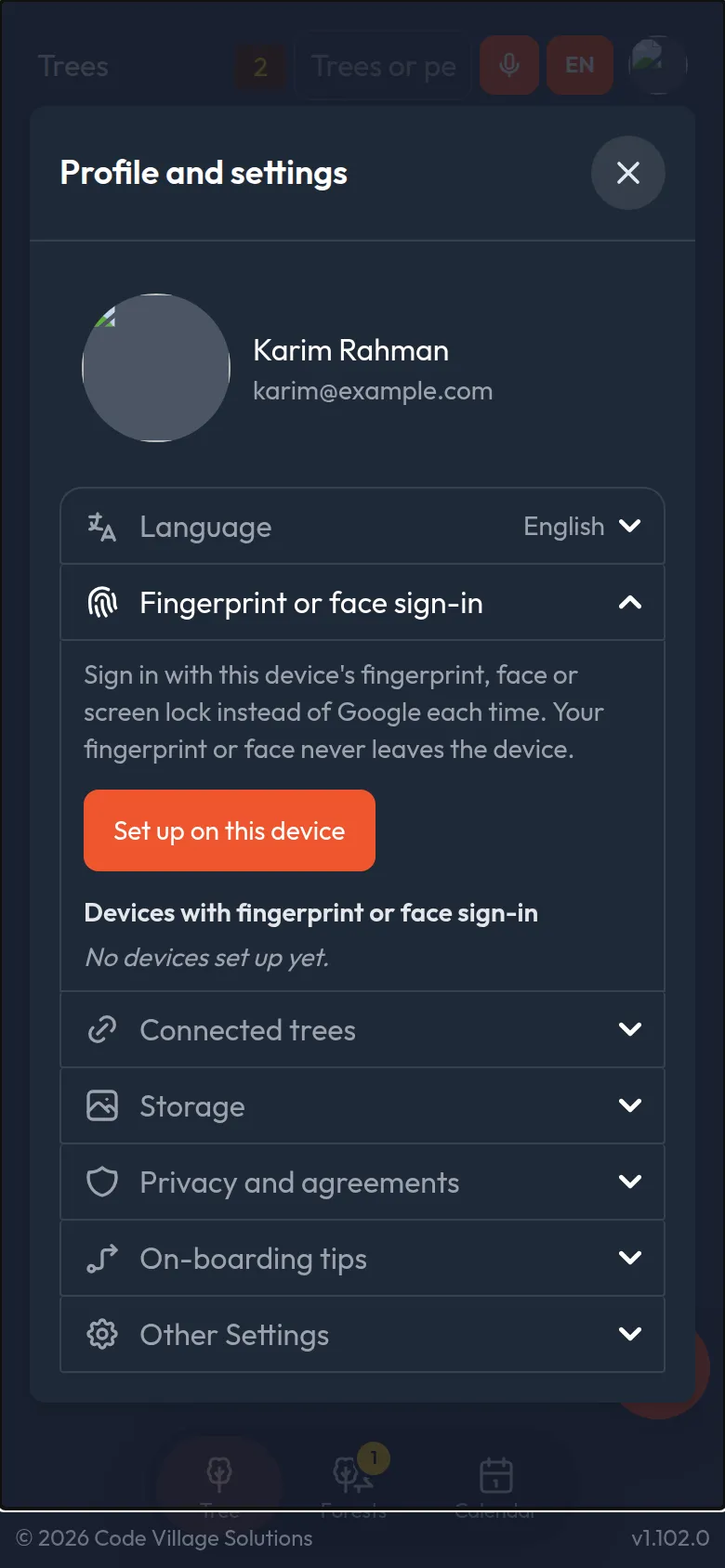
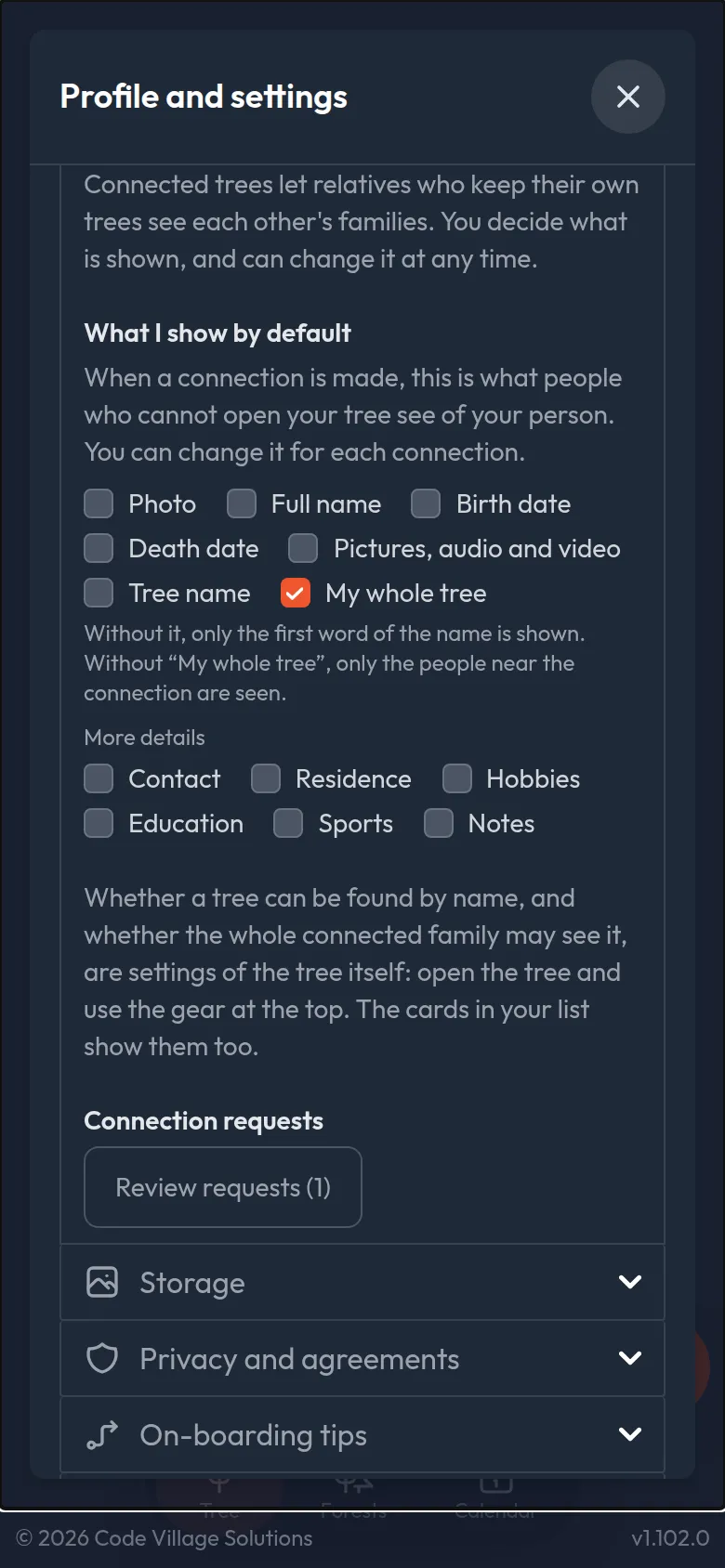
Settings for forests (lesson 10):
- What I show by default. The tick boxes that are pre-selected when you connect a person to another tree. You can still change them for each connection.
- Your requests. A button that opens the connection requests waiting for you.
They belong to each tree, so they are in the tree's gear (lesson 10), and shown as small marks on its card.
Storage
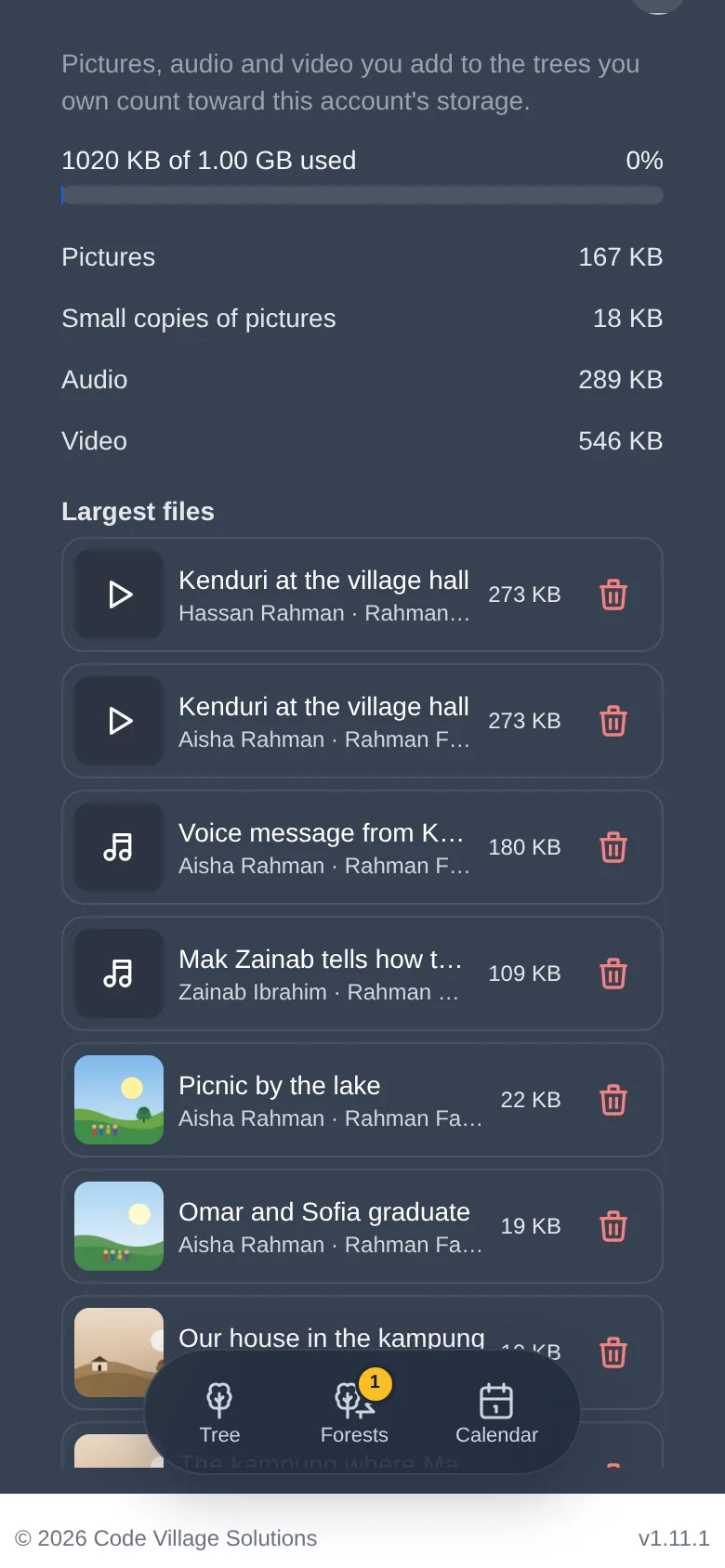
Shows how much of your 100 MB is used, a breakdown by pictures, small copies, audio and video, and a list of your largest files (lesson 8).
Smaller pictures
Phone pictures are big. In the same section you can switch on Make pictures smaller when they are added: every new picture in the trees you own is then made smaller (longest side 2048 pixels), so about ten times as many fit in your storage, and it looks the same on a screen. It is off unless you turn it on, and Asal Ku asks you to confirm. Before each upload it shows how much the pictures will shrink.
Make my existing pictures smaller does the same for the pictures you already have. Tap Check how much I would save to see the saving first; nothing changes until you confirm.
It cannot be brought back, and the picture cannot be printed as large as before. A backup made before keeps the full-size pictures, but the backup uses storage too.
Backups
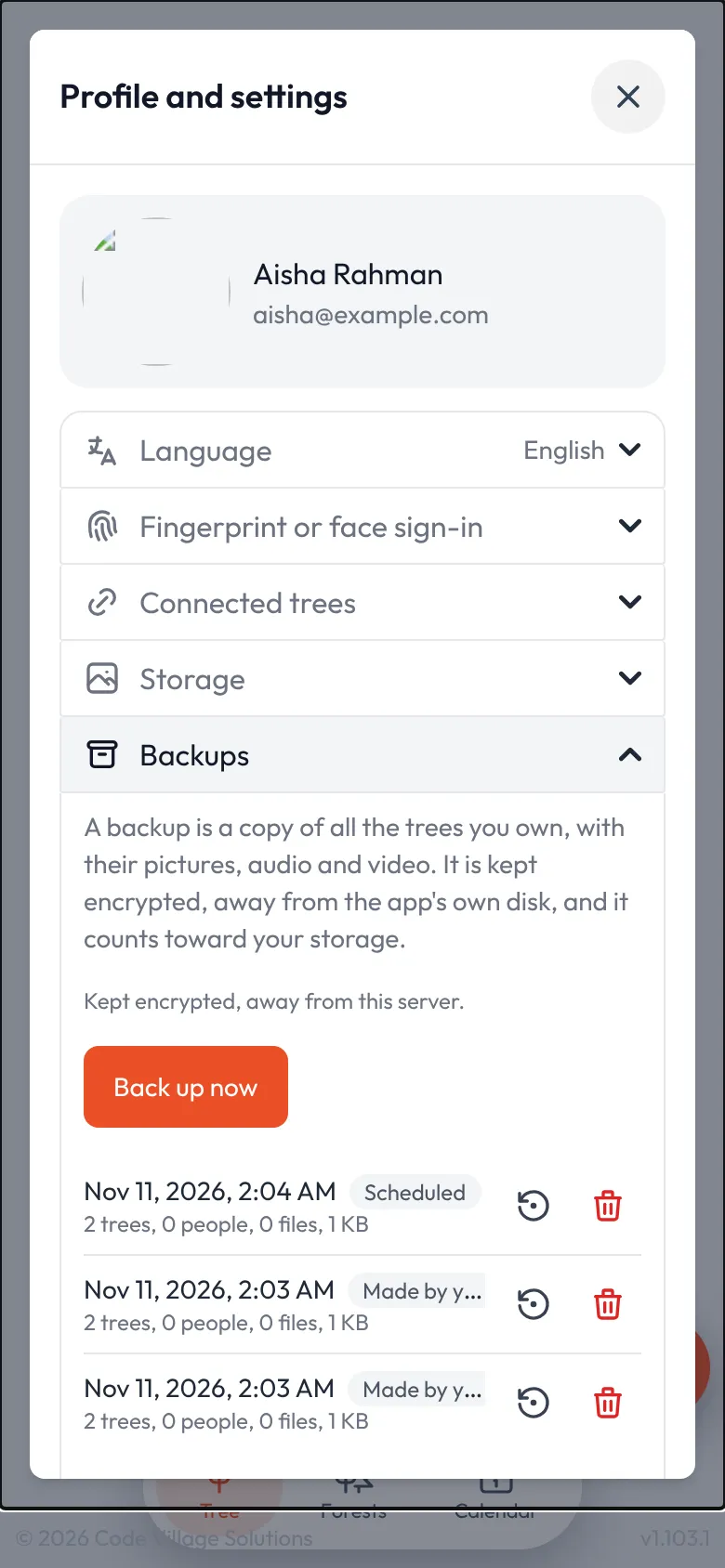
A backup is a copy of all the trees you own, with their pictures, audio and video. It is kept encrypted, away from the server the app runs on, so it still exists if that server is lost. Backups use your storage (the Storage section shows them), and deleting one frees its space.
Open the Backups section and tap Back up now. A big gallery can take a few minutes.
Under Back up automatically choose how often (every 6 hours up to every month, or never) and Keep the newest: how many scheduled copies to keep. Older ones are removed for you. A copy you made yourself is never removed automatically.
To bring something back, tap the round-arrow Restore icon beside a backup (the bin beside it deletes it). Your current trees are not changed: you get new copies named "… (restored …)" in your list of trees. Who you shared with, and connections to other families' trees, are not brought back.
A backup holds the trees you own, not trees that others shared with you. If the server shows "Backups are not switched on", the administrator has not set them up yet.
Privacy and agreements
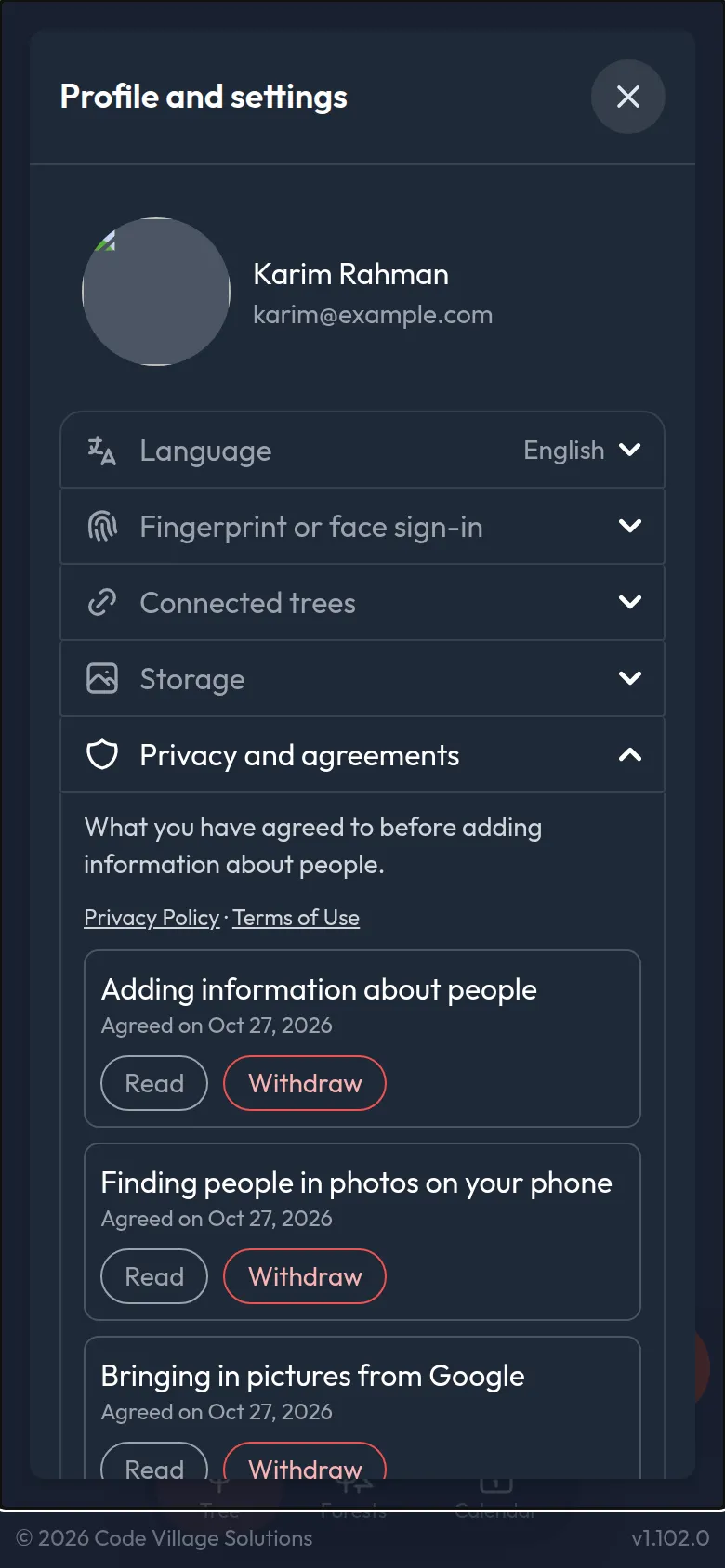
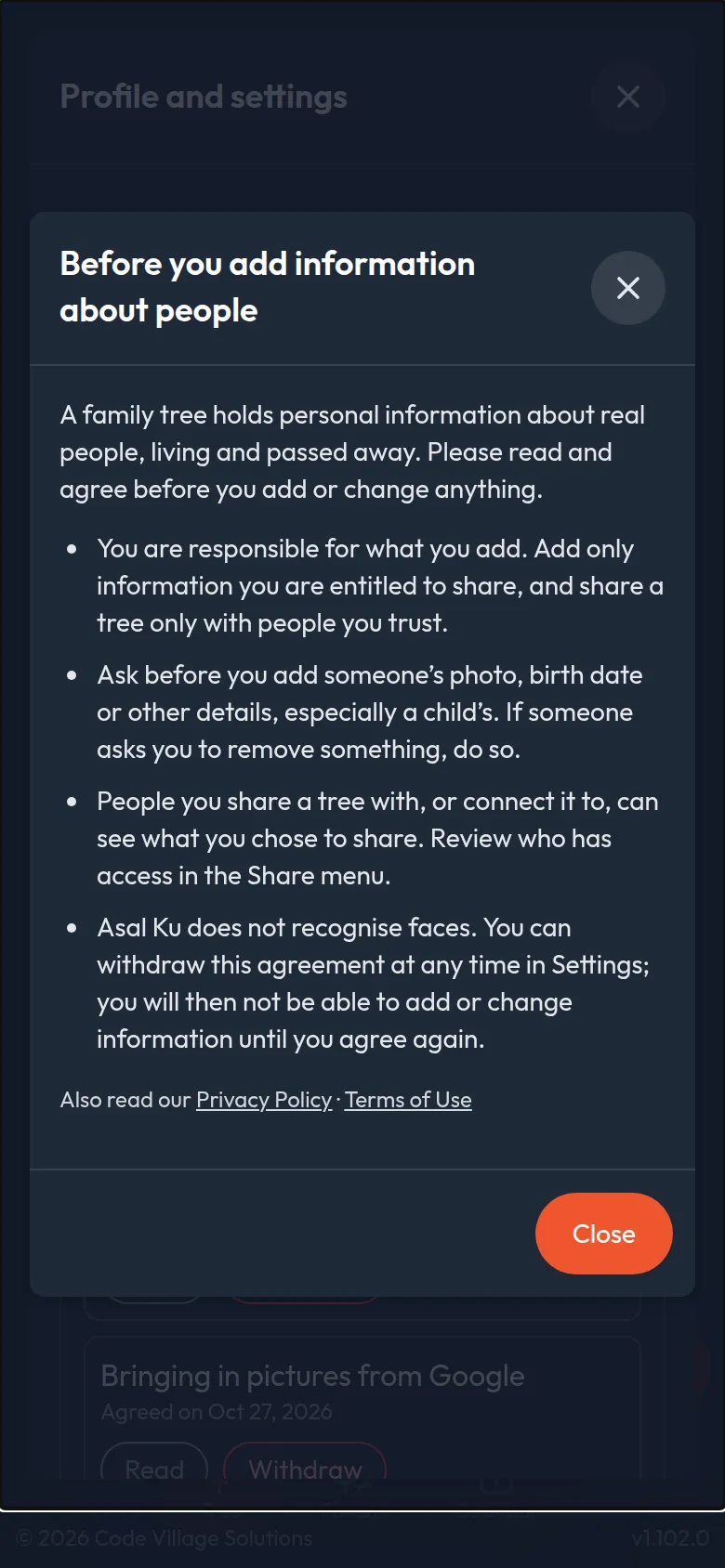
Before you add or change information about people, Asal Ku asks you to read and agree to a few simple rules: you are responsible for what you add, ask before adding someone's photo or details (especially a child's), and the people you share a tree with see what you chose to share. It is asked once, and again only if the rules change. If you do not agree, you can still look at trees; you just cannot add, change or share anything.
Open Privacy and agreements to see what you agreed to and when. Read shows the text again, and Withdraw takes your agreement back: you will be asked again before you can add or change anything. There is a second agreement for Finding people in photos on your phone, asked the first time you use Find people (lesson 14).
The same page has links to the Privacy Policy and the Terms of Use. Lesson 15 explains them.
Delete my account
At the bottom of the list. It removes your account for good, together with every tree you own (all their people, pictures, audio and video) and all your backups. First it shows what will go, including how many other people lose access to each of your trees. To go ahead, type the email address of your account, then tap Delete my account for good. You are signed out at once.
Trees other people shared with you are not touched. Our encrypted backups of the whole service may still hold your data for about two weeks, then it is gone. If you sign in again later, you start with a new, empty account. The only administrator cannot delete their account until someone else is an administrator.
On-boarding tips
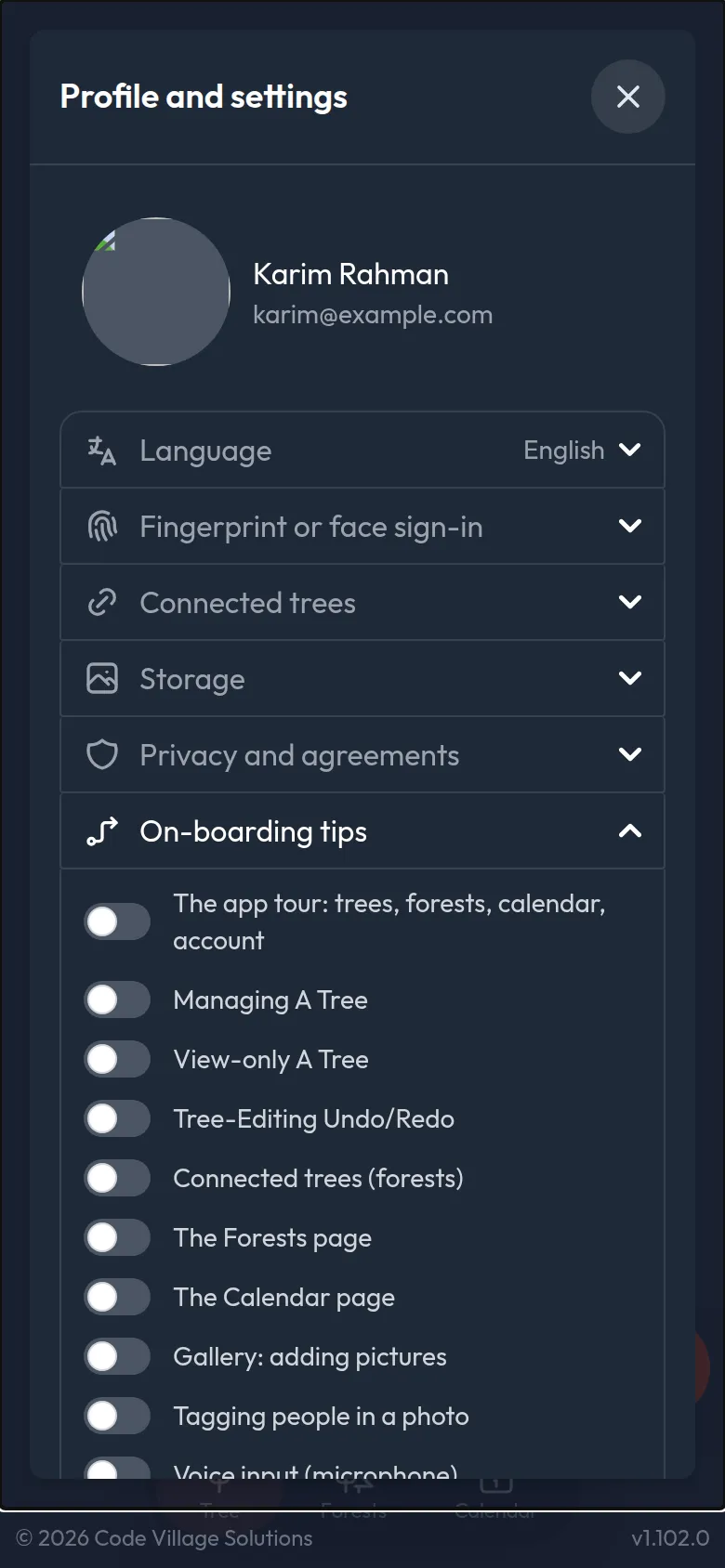
The yellow tips that explain buttons appear once for each page. Here you can switch each group on or off, for example to see the tips for managing a tree again, or to turn them all off once you know your way around.
The first time you open the list of trees, one tour walks along it in order: the total, search (with the microphone), the Mine / Shared / Pinned tabs, Scan QR, Sort, Symbols, the cards, the new-tree button, then the bottom bar (Trees, Forests, Calendar) and your account. Each newer feature has its own group of tips too: the person menu and relationships, connected trees (forests), the Forests page, the Calendar, adding pictures to a gallery, tagging people in a photo, and speaking instead of typing. A group starts after the older tips on its page, and closing a tip early (the cross, a tap outside or Escape) skips the rest of the tips for that visit. A tip that points at something further down the page scrolls it into view first.
Light and dark mode, and signing out
Both are in the account menu at the top right (lesson 2). Signing out removes your access on that device. Trees are not affected.
When there is no internet
Asal Ku keeps the trees you have opened on your device. If your connection drops, a yellow message at the top says "You are offline. Showing the trees saved on this device; editing is not available." You can still look at trees you opened earlier. Editing, uploading and sharing wait until the connection is back.
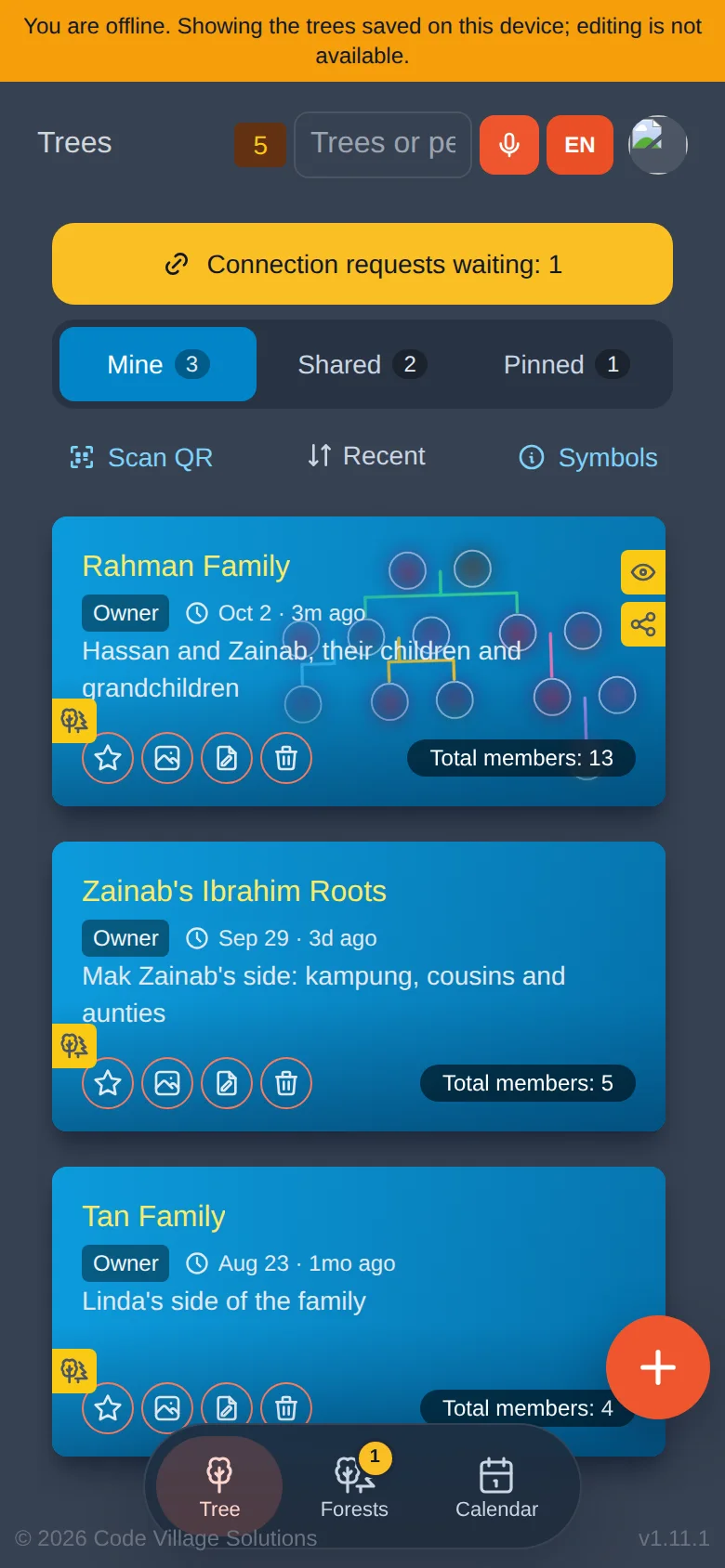
Open the trees you want to read while you still have a connection. They will be there when you do not.
For administrators: Data transfer
If you do not see Data transfer in your settings, it is not for you, and that is normal.
Administrators can move everything from one installation of Asal Ku to another, or back it up.
- Download a backup creates one .zip with the whole database and all photos. Keep it somewhere safe.
- Replace everything from a backup takes a backup .zip, or an old database dump (.sql), and replaces all data, including users. You must type the word REPLACE to confirm. A safety copy is made first and put back automatically if anything goes wrong.
- Add images adds a .zip of photos without changing anything else.
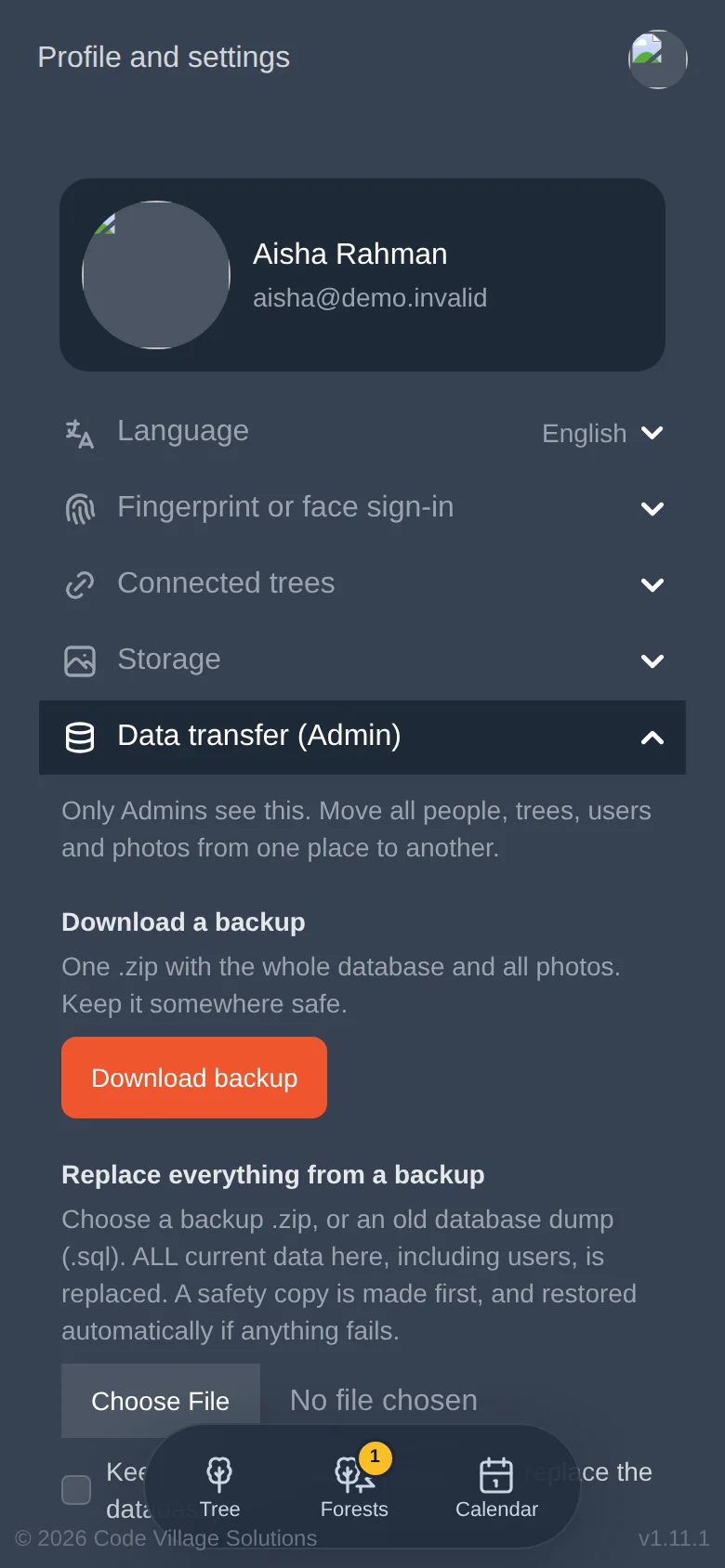
Everything currently in the installation is replaced. Download a backup first, even though a safety copy is made.
Try it yourself
- Change the language to another one you can read, look around, then change it back.
- Open the Connected trees section and look at the default choices.
- Turn the on-boarding tips for one page back on, and visit the page.
Remember
- Backups are encrypted copies of your own trees; restoring makes new copies and changes nothing you have.
- Everything personal is in Profile and settings, behind your round picture.
- The language changes the whole app at once.
- Opened trees can be read offline; editing needs a connection.